Views and commands
The dashboard
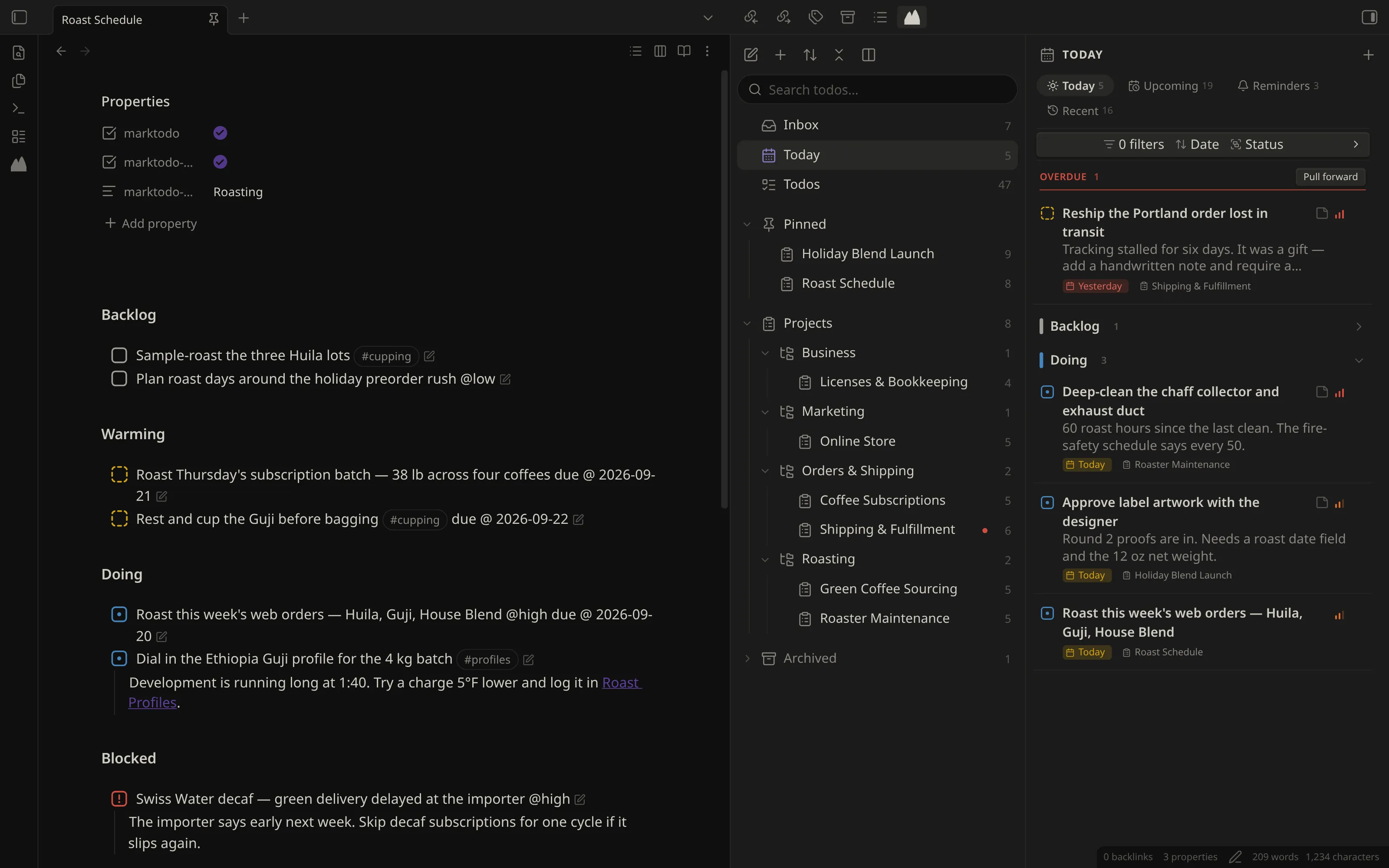
Section titled “The dashboard”Open it from the MarkTodo ribbon icon or the Open dashboard command. It has two columns, like Notebook Navigator:
-
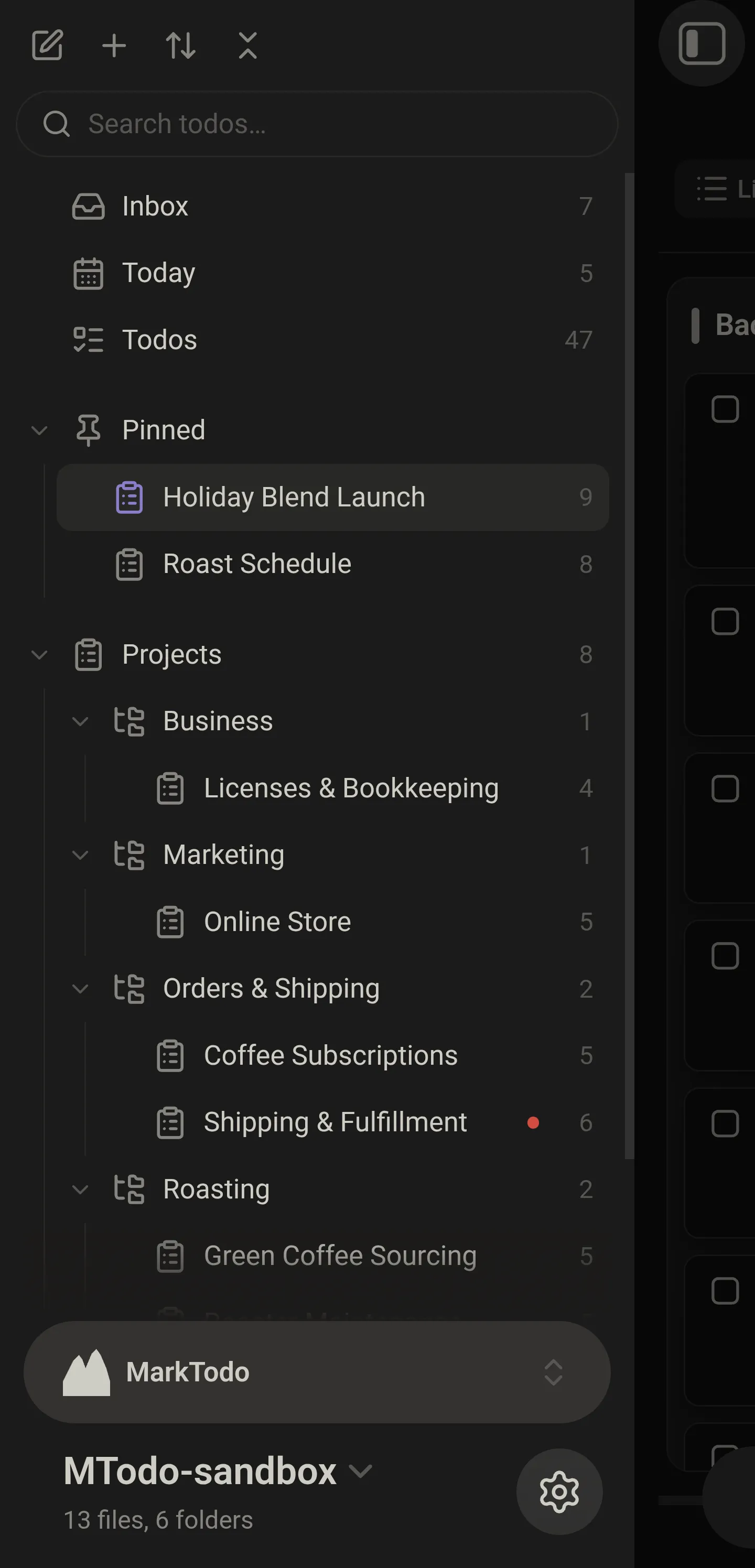
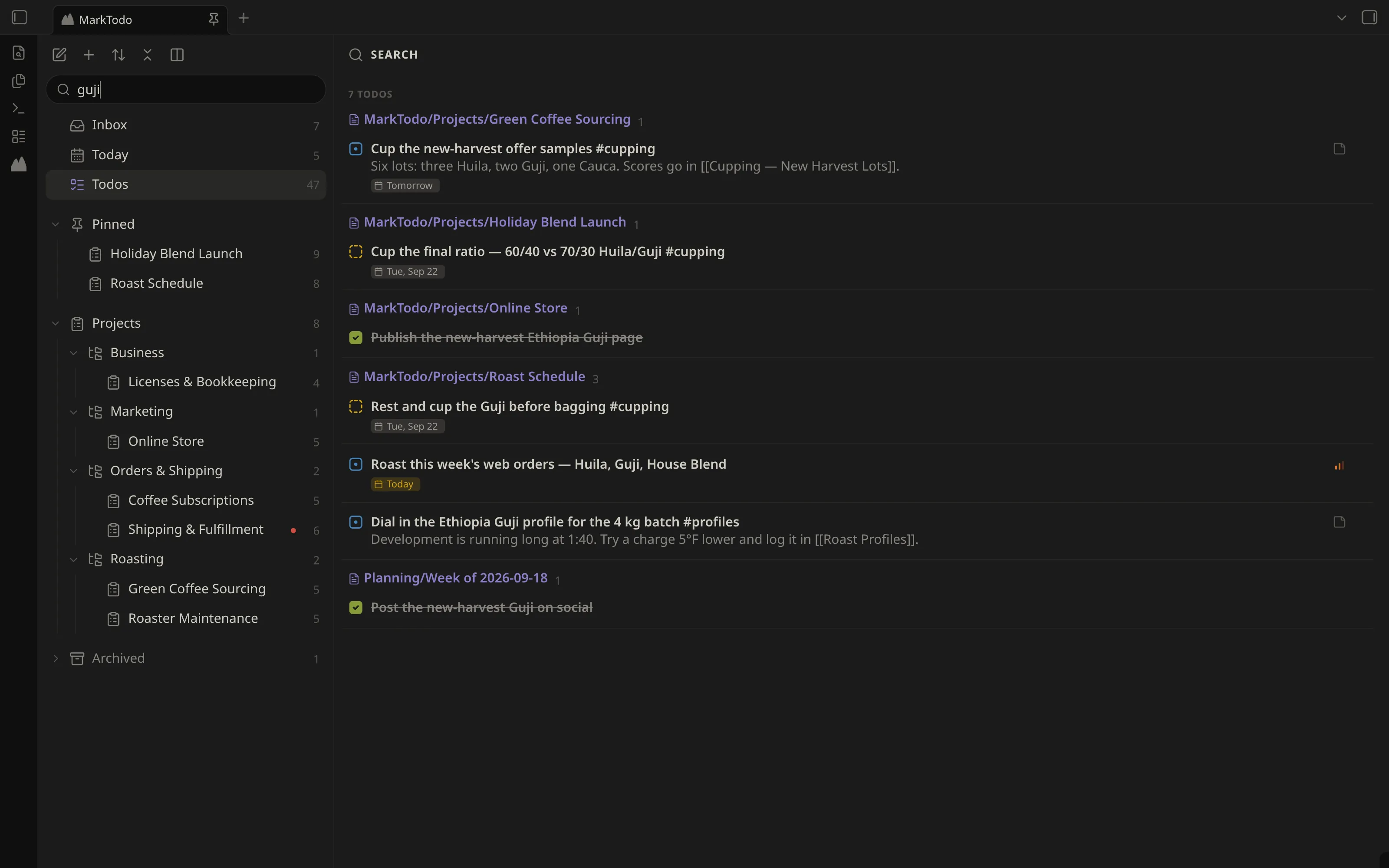
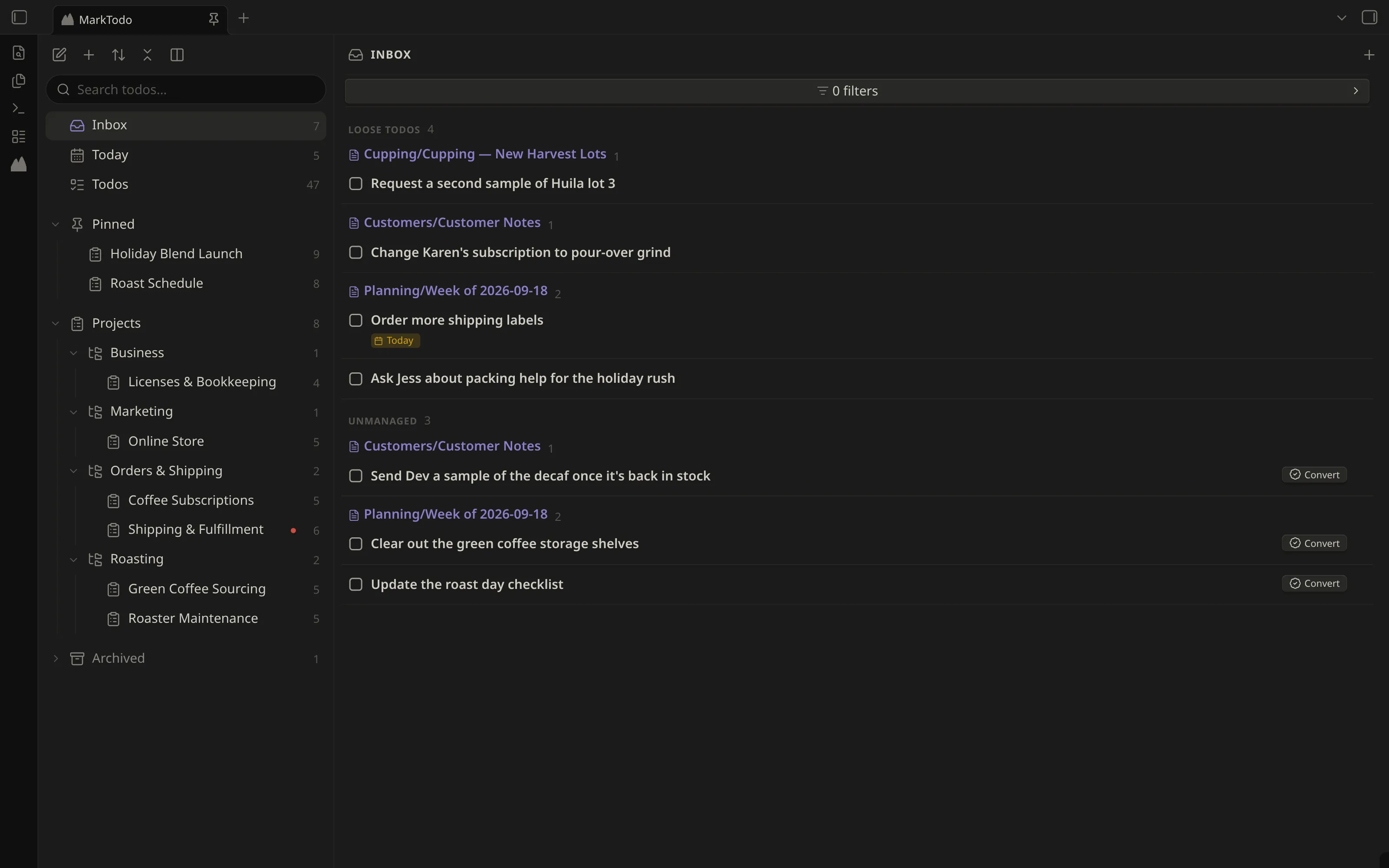
Navigation — Inbox, Agenda and Todos with their counts, then Pinned when you have pinned anything, then Projects with a count of its own, holding every project in a tree grouped by
marktodo-group. Archived sits below them all. A search box at the top finds todos anywhere in the vault. A red dot means something in a project is overdue.The tree reads in three tiers at a glance: stacked folders for the Projects collection, a folder with branches for a group you made, and a folder with columns for a project itself.
-
The list you picked — beside the navigation, with its view bar and an add button. Lists show all six status sections with counts; click a section to fold it. Done starts folded.
Use a project’s … menu (or right-click) to pin it, move it to another group, archive it or open its note. A group’s … menu edits or deletes the group.
The navigation toolbar
Section titled “The navigation toolbar”A row of buttons above the search box:
- Add todo — the todo editor, on the project you have selected.
- New project or group — New project… or New group….
- Sort projects — Name, Open todos or Recently edited.
- Collapse or expand all groups — every group at once.
- Show one column / Show two columns — the same switch as Settings → Layout and the Toggle one or two dashboard columns command. Not on phones, which always use one column.
Layout
Section titled “Layout”In Settings → Layout:
- Dashboard opens in — the left sidebar (the default), the right sidebar, a pane at the left of the main area, or the main area. Wherever it goes it gets a tab group of its own: nothing — not a note, not a new tab, not another sidebar view — opens over it.
- Dashboard columns — one or two. With one column, picking something opens its list with a back button. Phones always use one column, and so does a dashboard too narrow for two.
- Navigation column side — left or right. Drag the divider to resize.
The view bar
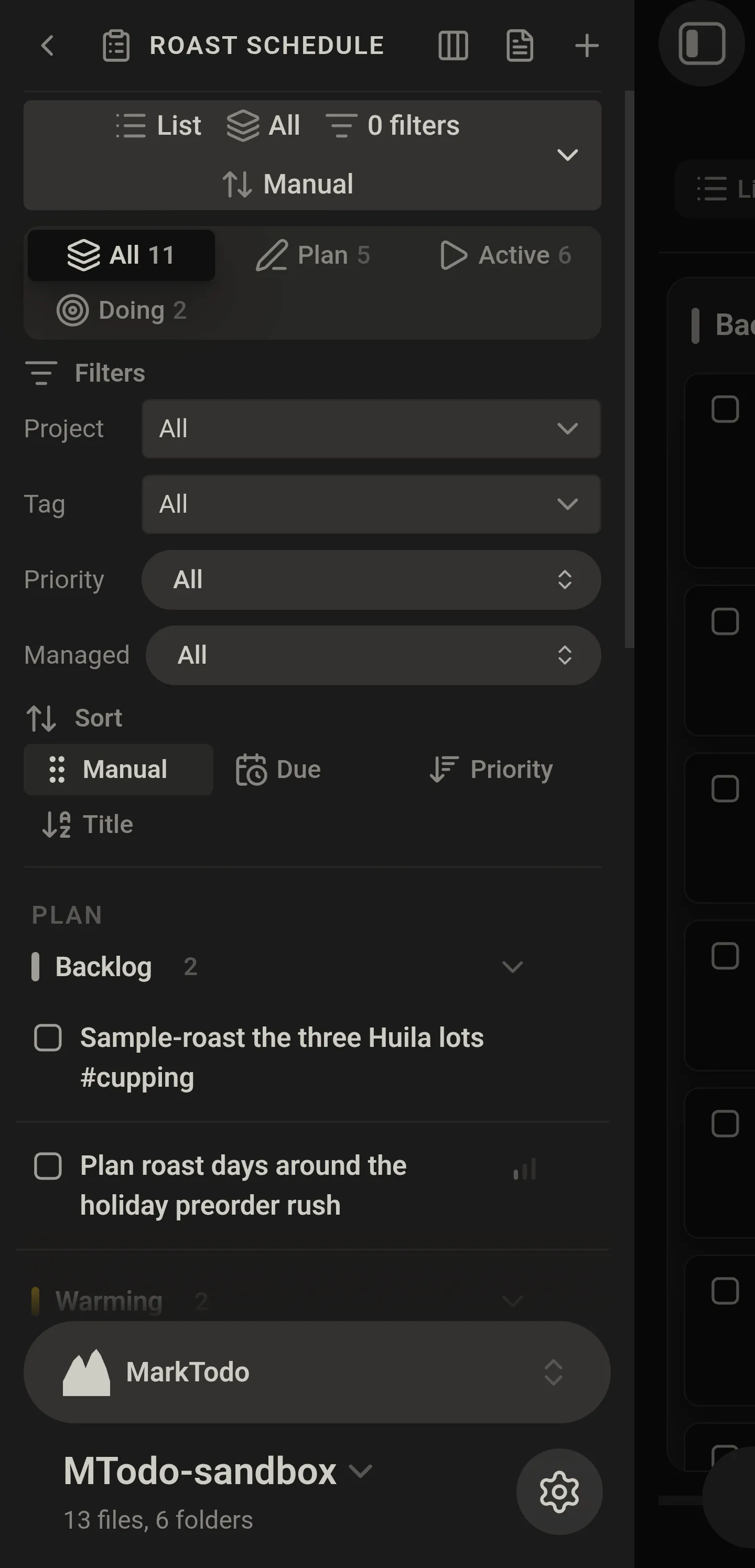
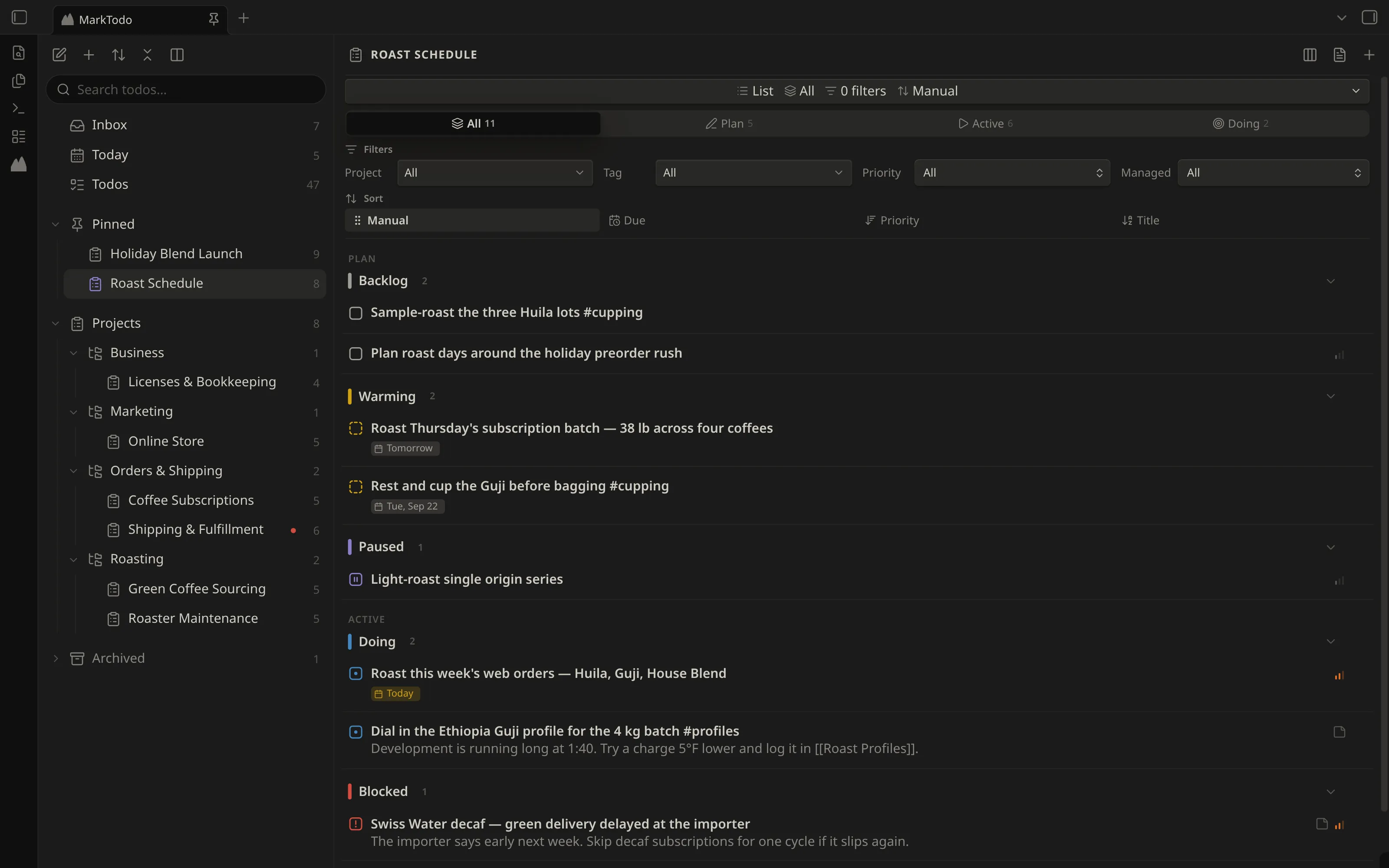
Section titled “The view bar”Every list and every board carries one collapsible bar, and it is the same bar everywhere: what you are looking at, and how it is ordered, in one place.
Collapsed it is one line, and that line still says what the bar is doing — a
project’s list reads List | All | 0 filters | Manual, Agenda’s Upcoming reads
0 filters | Date | None. A control that hides itself leaves you guessing why
a list is short.
The parts read in a fixed order: the layout, the focus, how many filters are set, the sort, then the grouping. A part a surface does not have is simply absent, in the line and in the bar.
| Surface | Focus | Filters | Sort | Group |
|---|---|---|---|---|
| Inbox | — | yes | — | — |
| Agenda | — | yes | yes | yes |
| Todos, and a project’s list | yes | yes | yes | — |
| A Kanban board | yes | yes | — | — |
The Inbox has neither focus nor sort: a loose todo can only be Backlog or Done, so Plan, Active and Doing would be three controls two of which can never match, and its sections are notes rather than statuses. A board has no sort because a board’s order is the one you set by dragging.
On a board, the List / Kanban / Source switch rides in the head of the bar. In the dashboard the bar names the layout you are in and the list header’s board button opens the other one.
Four segments — All, Plan, Active and Doing — narrow any status-sectioned view to a phase, or to Doing alone when all you want on screen is what you are actually working on. Each segment carries a count, so a narrowed view is never mistaken for an empty one.
Focus is held across views, not per view. Pick Doing on one project and every list and board you open is on Doing until you change it: it is a stance you take for a stretch of work, not a setting each screen keeps its own copy of.
Filters
Section titled “Filters”Filters are offered on every surface, a project’s own list included: “it is already one project” rules out nothing, because tag, priority and managed all still narrow a long project.
- Project and Tag are type-to-narrow pickers; a vault outgrows a plain dropdown fast.
- Priority and Managed are dropdowns.
- Clear resets all of them at once.
The Inbox drops Project and Managed: everything in it is loose by definition, and it splits managed from unmanaged into sections itself.
Sort and group
Section titled “Sort and group”Sort orders the todos inside each section — each status section on a list, each group on Agenda — out of one table the plugin and the app share, so “sorted by Priority” cannot come to mean two different orders on two screens.
- A list offers Manual, Due, Priority, Title and Project.
- Agenda offers Date, Priority, Title and Project. Its date is whichever date the segment is about: the due date on Agenda and Upcoming, and the reminder on Reminders.
- Project appears only where more than one project is on screen. On a single project’s list it would order nothing.
Manual is file order, and it is the only sort that leaves drag-to-reorder meaningful. Picking another turns dragging off rather than writing an order nothing on screen reflects.
Done ignores the sort. Every Done section and every Done column reads most-recently-completed first — on a list, on a project, on a board — because every other order over finished work answers a question nobody asks. For the same reason a Done row cannot be dragged to reorder: its place in the file no longer says anything about where it appears. Dropping a todo into Done still works, and still marks it done.
Group belongs to Agenda alone: None, Date, Project, Priority or Status.
The lists
Section titled “The lists”- Inbox — every open todo outside a project, grouped by the note it lives in. Turn on Show unmanaged checkboxes and each plain checkbox gets a one-click Convert.
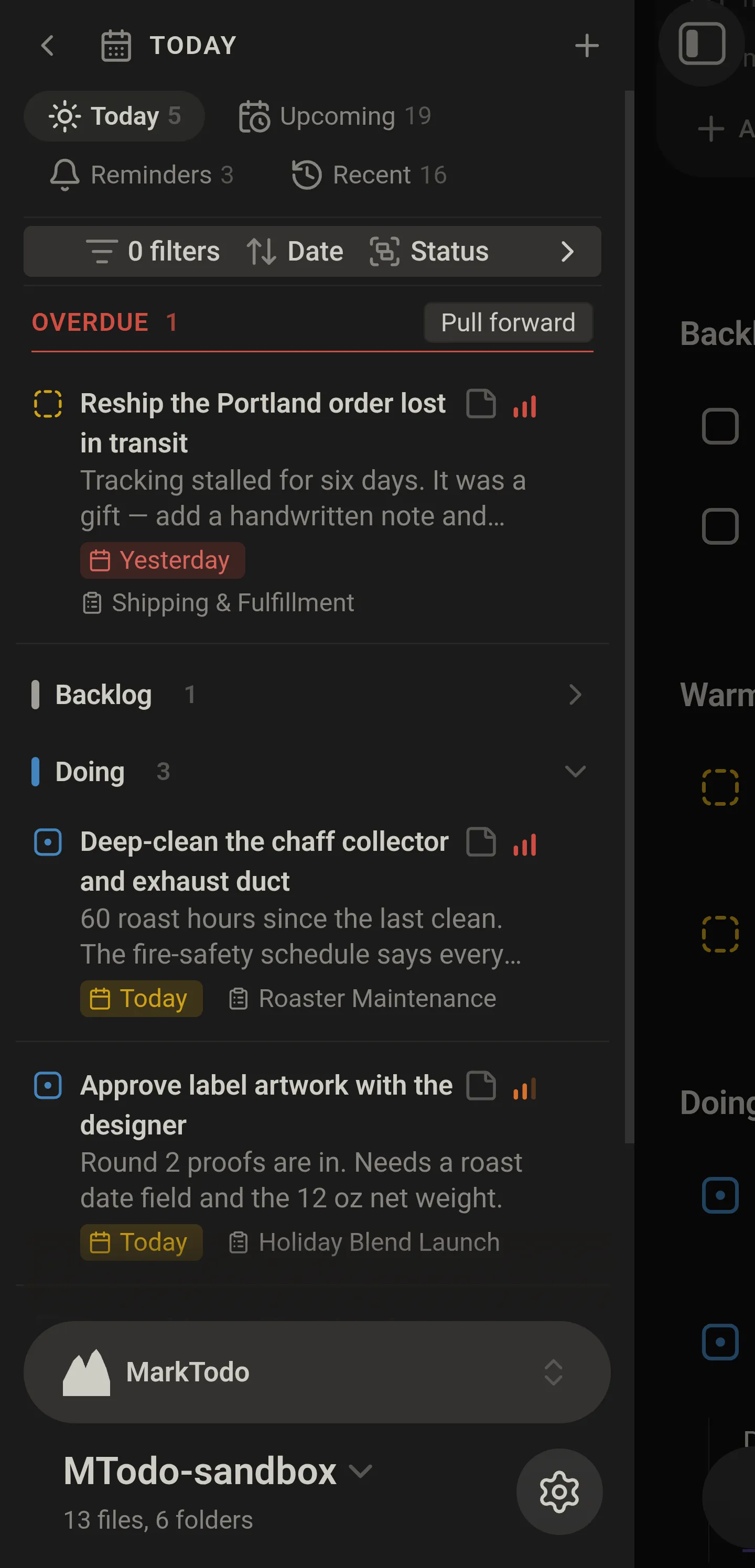
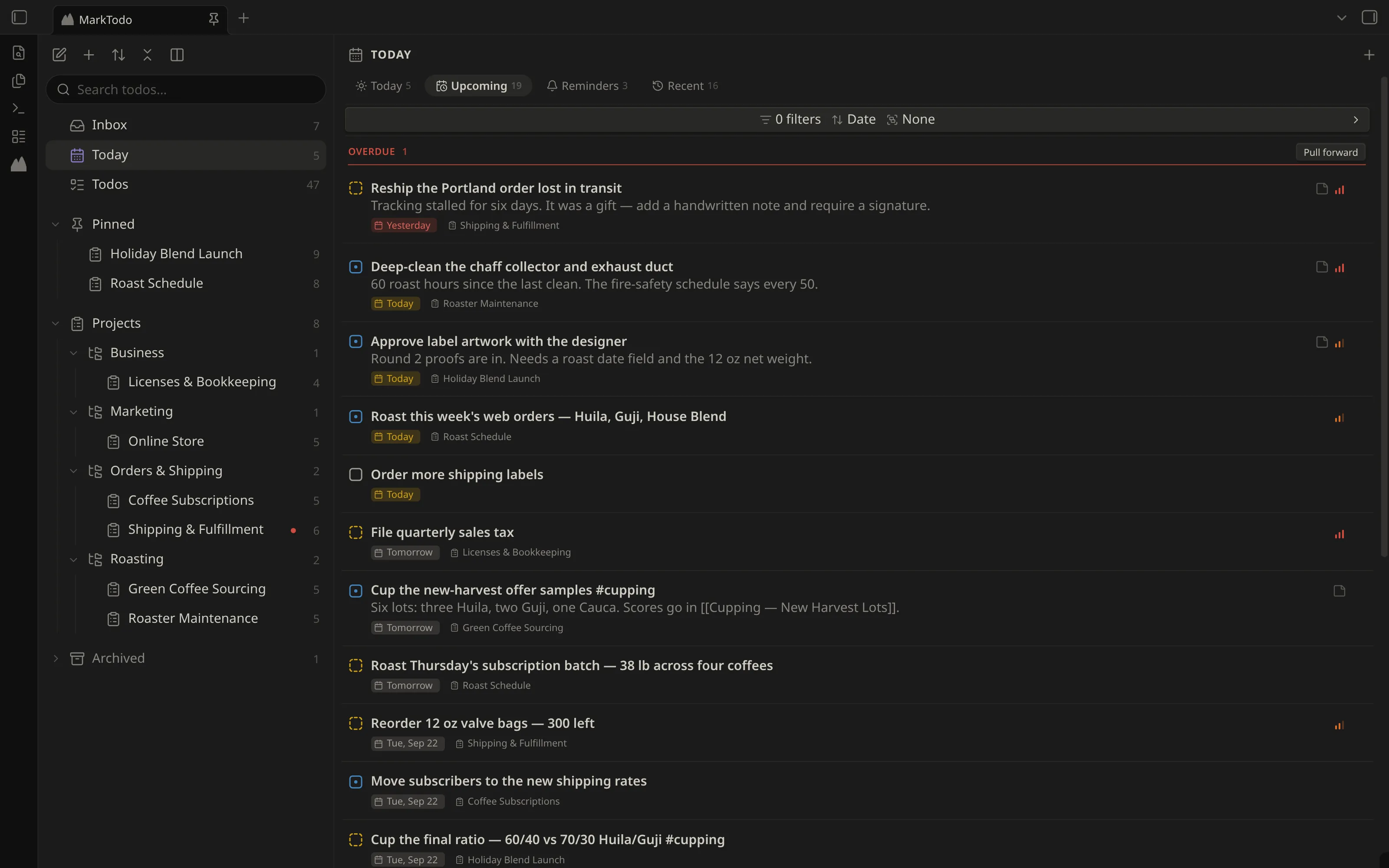
- Agenda — three segments across the whole vault.
- Todos — every project todo in the vault, in the six status sections.
- A project — that project’s todos, in the same six sections.
Agenda’s three segments
Section titled “Agenda’s three segments”| Segment | What it shows |
|---|---|
| Agenda | Open todos due today or earlier |
| Upcoming | Open todos due through seven days out, overdue included |
| Reminders | Open todos with a notify @, which the Android app fires |
The pane is called Agenda because it leads with what is overdue, and no reading of “today” covers a todo you missed three weeks ago. It is what is late plus what is due now.
There was a fourth segment, Recent, holding what you finished in the last seven days. Done now reads most-recently-completed first and pages, so the Todos list answers the same question without the cutoff — and three segments fit one row on a phone where four wrapped onto two.
In a narrow sidebar the row keeps Agenda and Upcoming whole, since they are the two you work from; Reminders stands on its bell and its count until the column can afford the word. Widen the sidebar, or open Agenda in the main area, and it comes back.
Upcoming has no lower bound on purpose. A todo you have already missed is the most upcoming thing you have, and leaving it out made it invisible on the one screen you check when planning the week.
Archived notes are left out of all three. Loose todos are in: a todo written into a daily note is still due today.
Overdue, and Pull forward
Section titled “Overdue, and Pull forward”Overdue leads Agenda and Upcoming in a band of its own — first, whatever the sort or the grouping, because it is not a group, it is what the screen is for. A todo due today is not overdue; it is today’s.
Pull forward, on the band, re-dates the overdue todos on screen to today: only what the filters and the focus have narrowed to, never every overdue todo in the vault. A button that quietly reaches past what you can see is one you cannot trust.
Reminders has no band. A reminder whose time has passed is still just a reminder.
What a list opens with
Section titled “What a list opens with”The Agenda segment opens grouped by status with everything except Doing folded: it is the “what am I on right now” screen, and a flat run of rows makes you read every glyph to find the two you are working on. The other two segments open ungrouped, because they are about dates. A project or the Todos list opens with Done folded and the rest open.
Those are defaults, not rules. Each of Agenda’s three segments remembers its own sort, group, filters and folds, because the three are three different questions; every other list remembers its own.
Twenty rows at a time
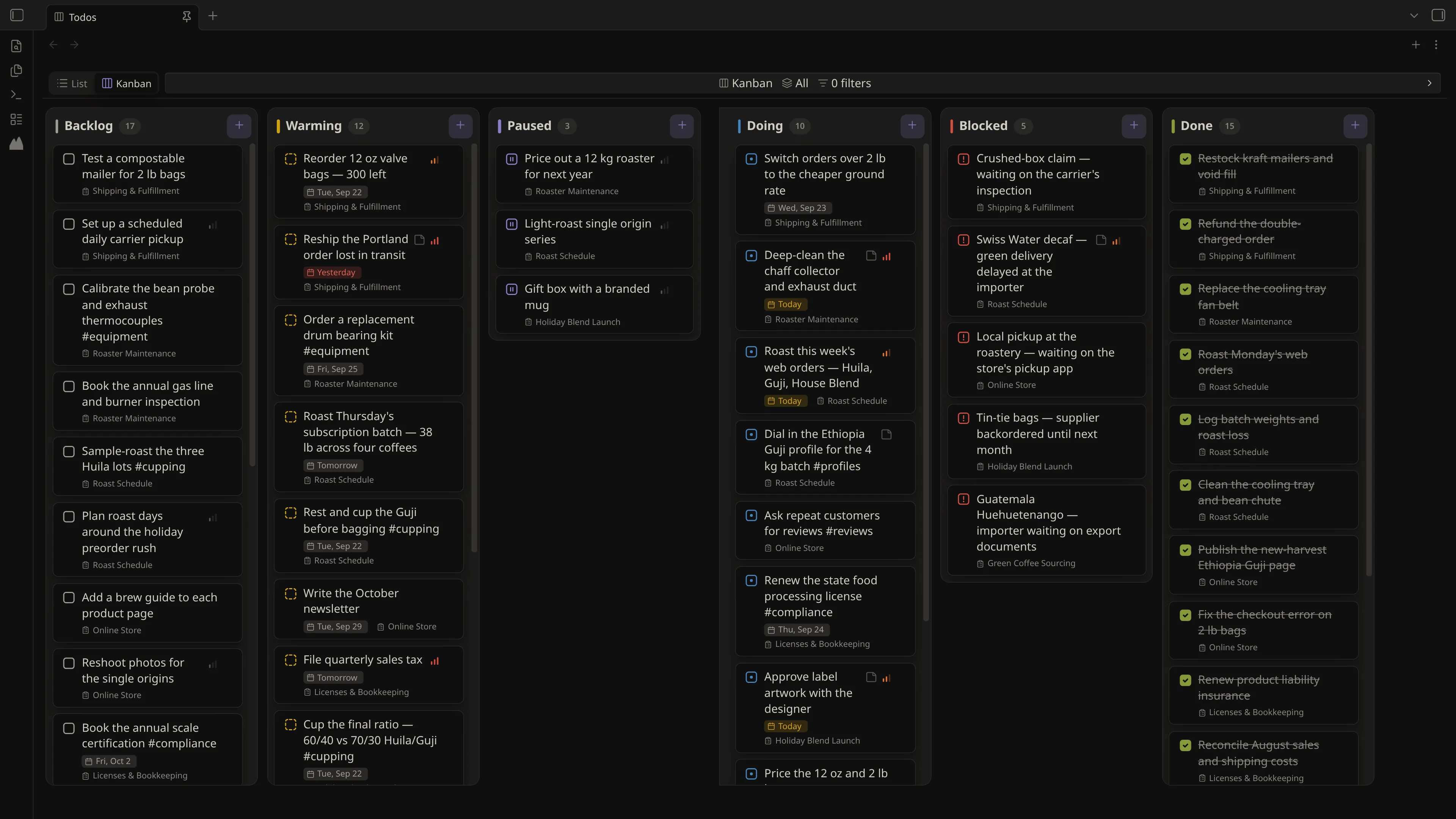
Section titled “Twenty rows at a time”Every section and every board column draws 20 rows, then offers Show 20 more
with the number still to come beside it. The heading counts the whole section,
so Done 412 still says 412.
It is about what gets drawn, not what gets found: a vault with a thousand finished todos was building a thousand rows every time the view opened, and Done is rarely why you opened it. What you have opened stays open while you are on that list, re-indexes included, and starts back at twenty when you move to another project, segment or view.
Boards
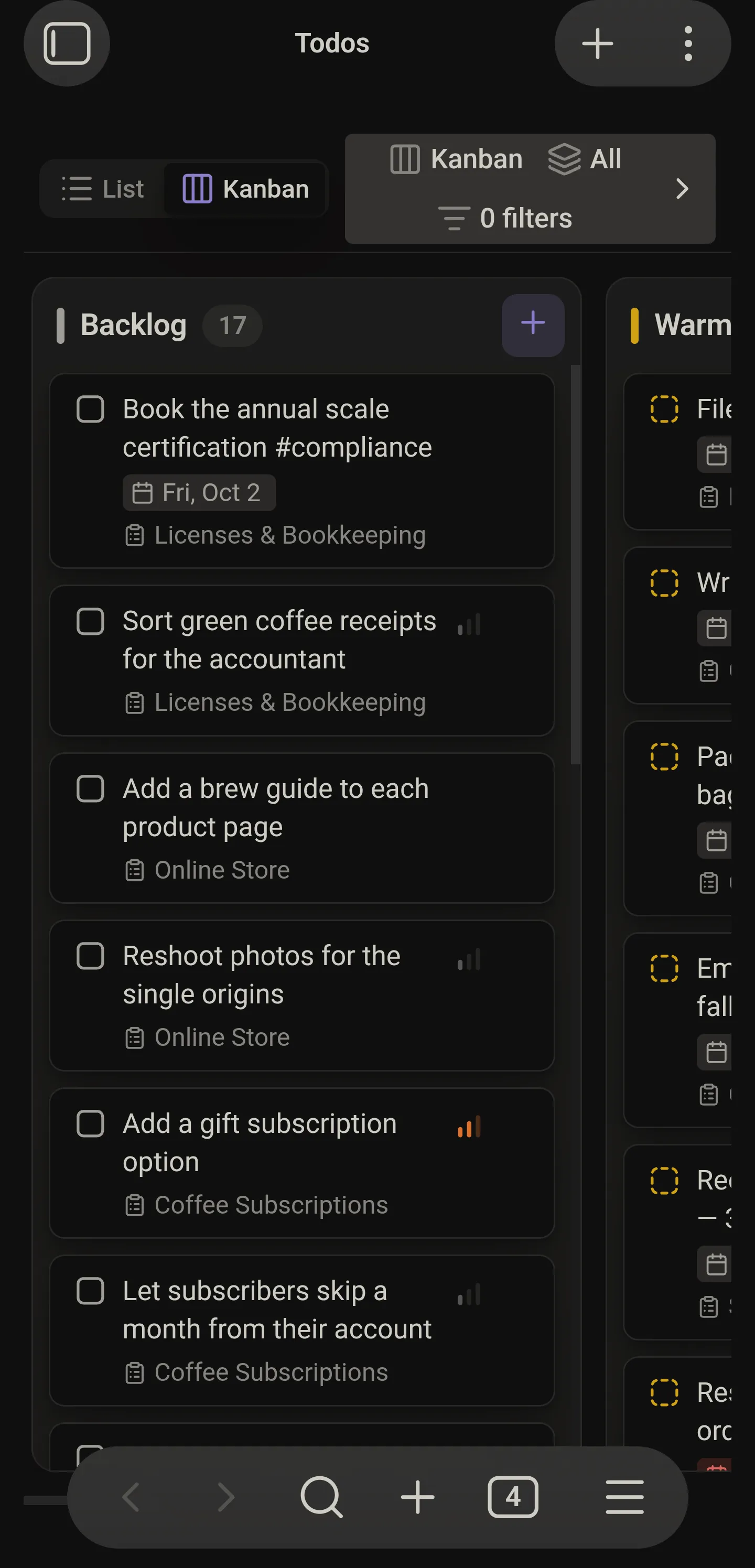
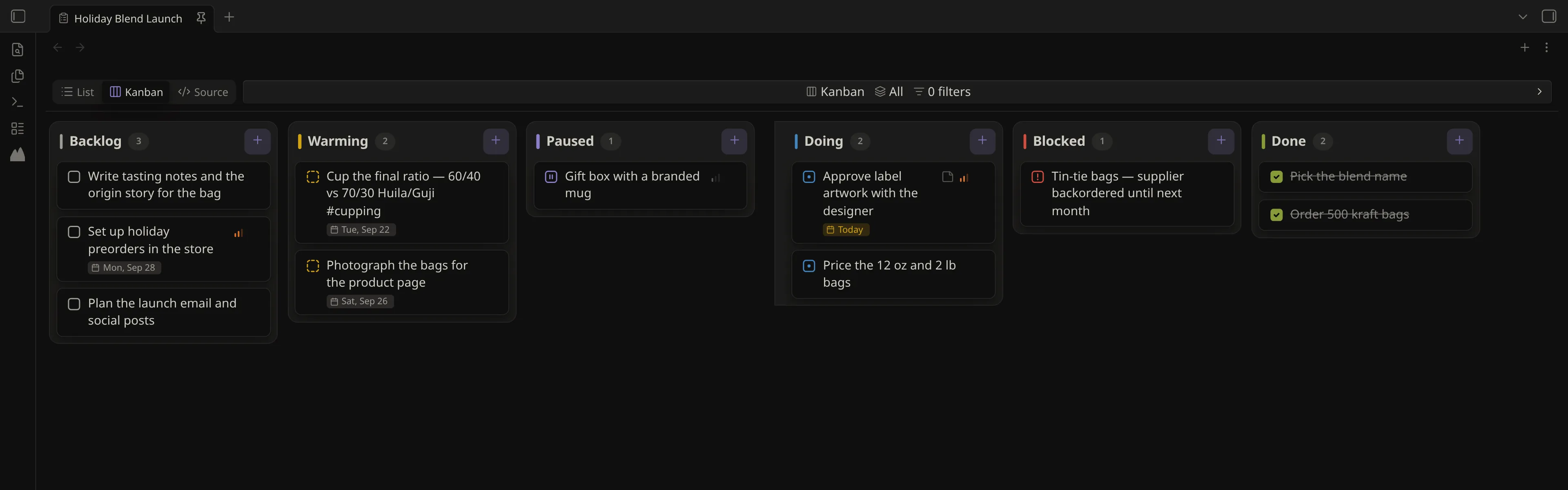
Section titled “Boards”A list’s header opens Todos or a project as a Kanban board in the main area. A board’s List switch goes back to the dashboard, and a project’s Source is its note, with List and Kanban buttons in the note’s header.
Drag a card within its column, or a todo within its list section, and the line moves in the note. Drop it on another status to change the status. Done is the exception in one direction only: its rows are ordered by completion, so they cannot be dragged to reorder, but dropping a todo into Done still marks it done.
Capturing todos
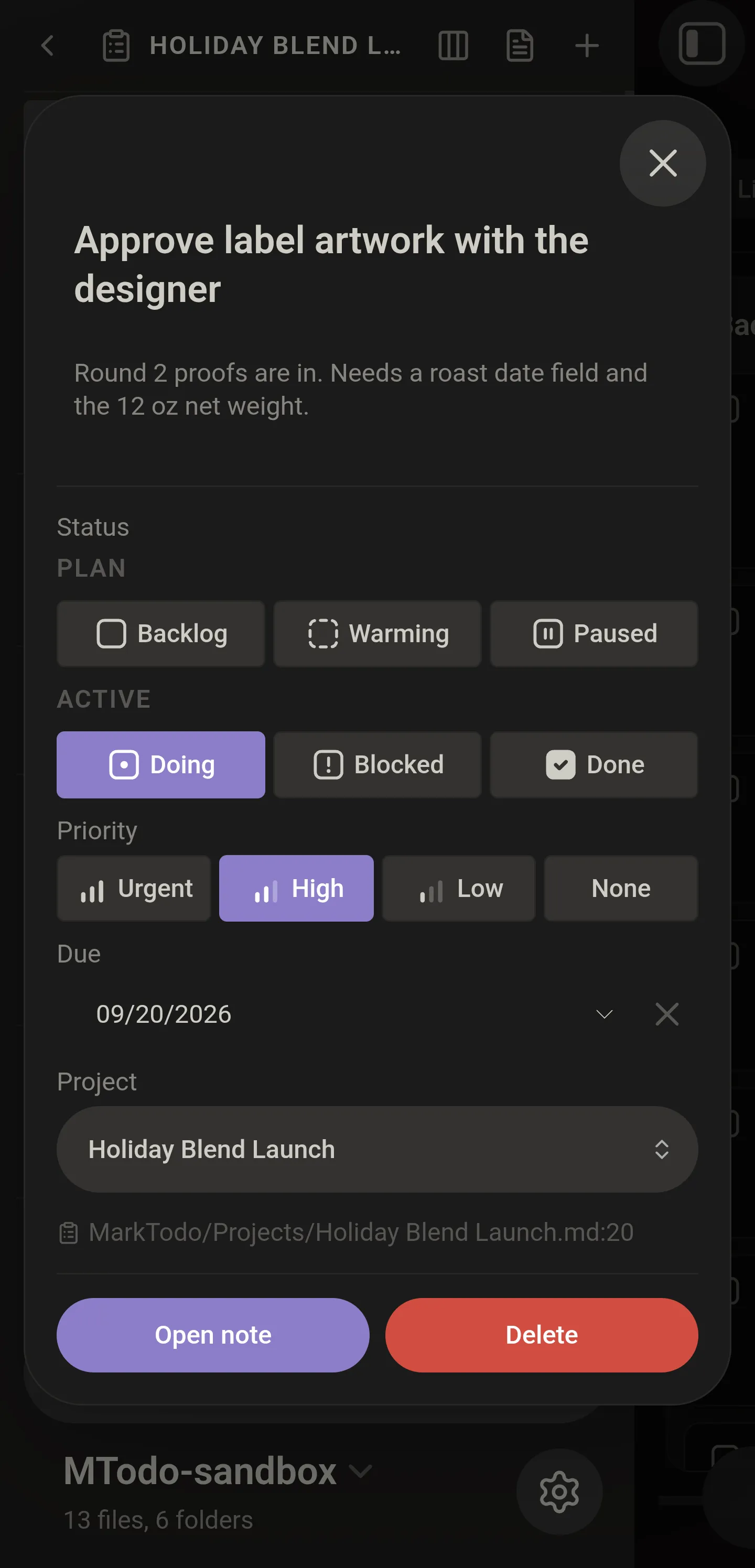
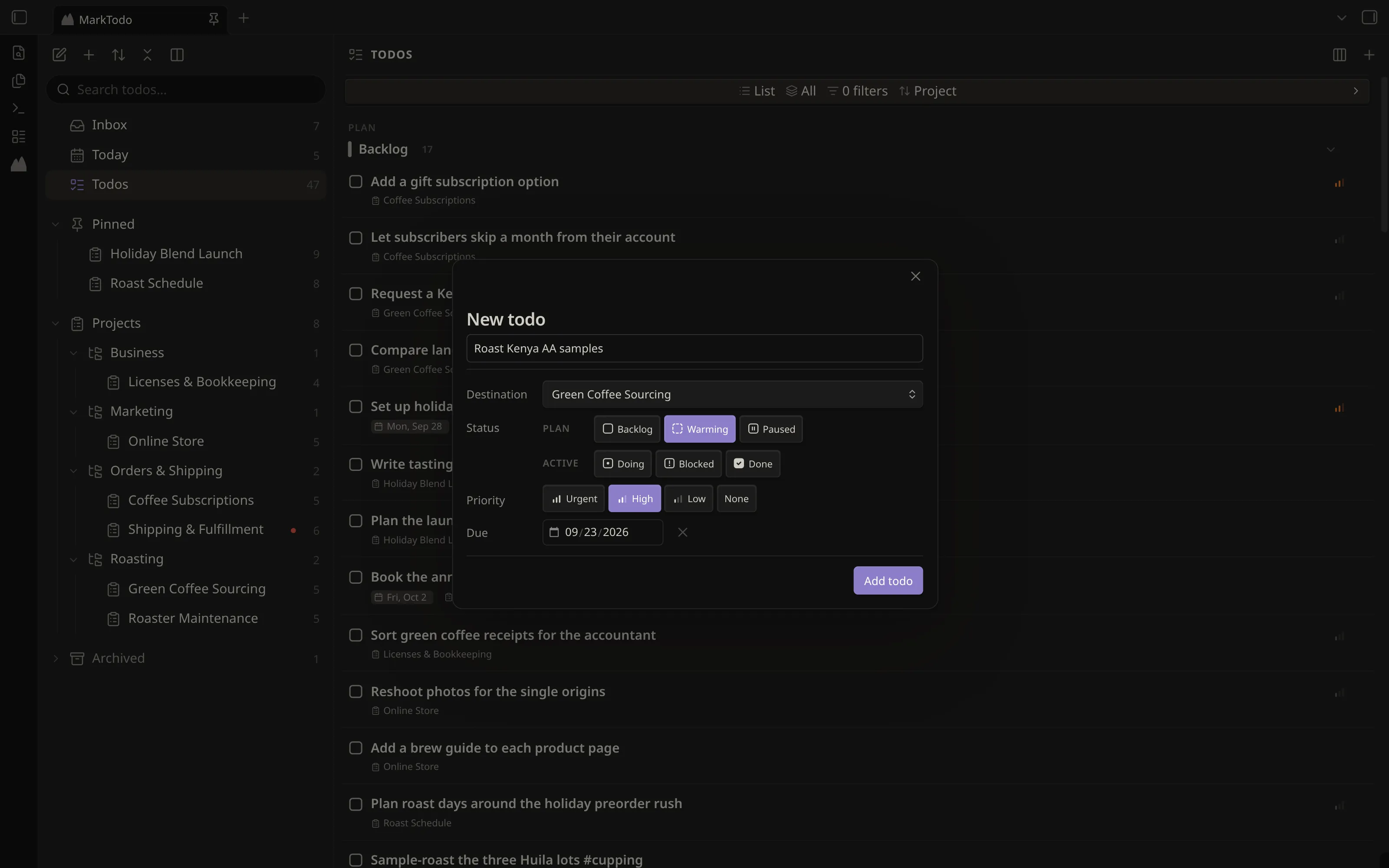
Section titled “Capturing todos”- Add todo… — one dialog: title, destination, status, priority and due date. The destination can be a project (the last one you used is preselected), today’s daily note, or your catch-all note.
- Keyword capture — type the trigger (
mtodoby default) after a space at the end of any line (Buy milk mtodo) and pick Create todo here or Open todo editor…, plus Send to… when a catch-all note is set. - Create project… and Convert note to project make a project.
Editing todos
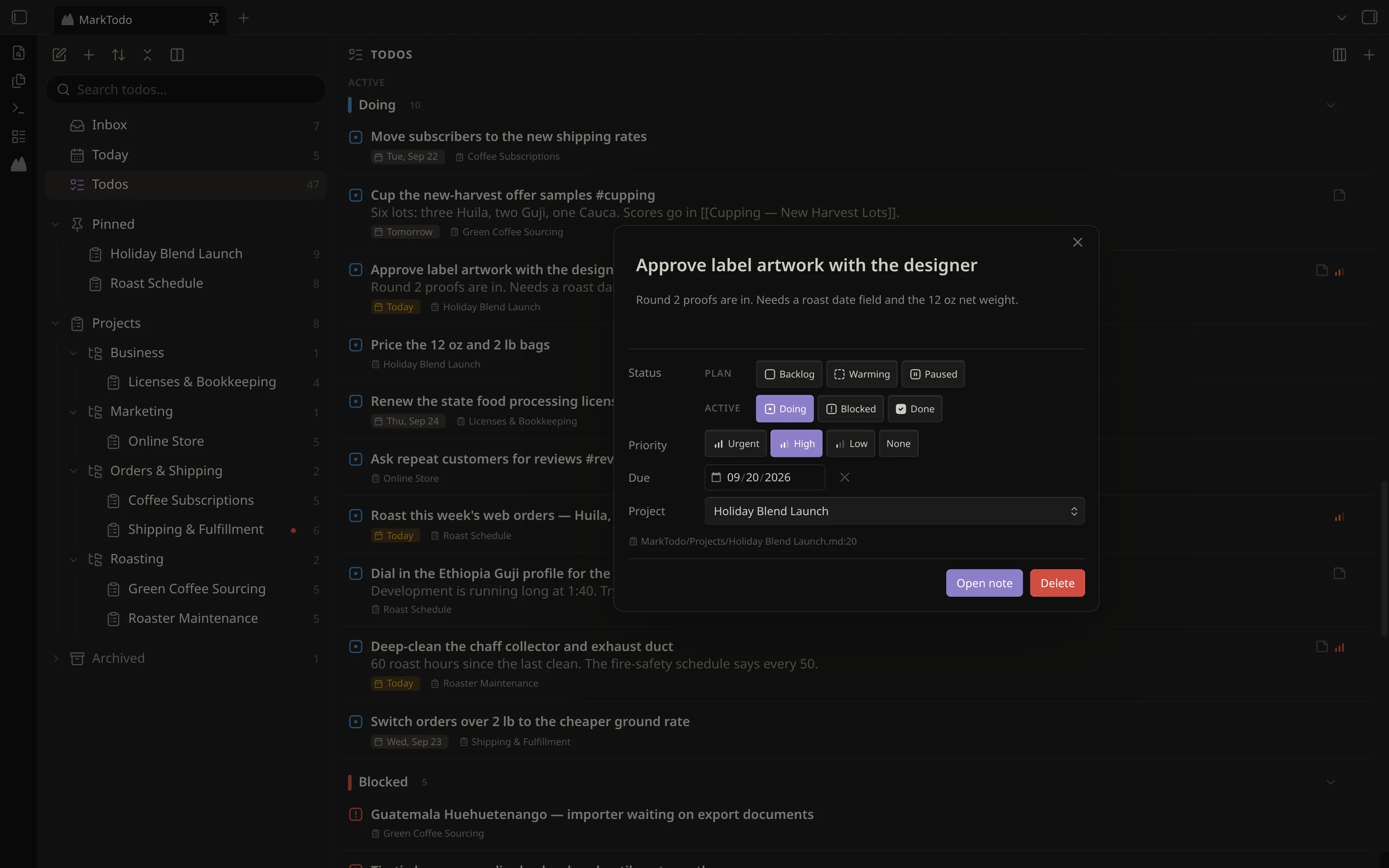
Section titled “Editing todos”- From the note — click the small edit icon at the end of a managed todo, in Live Preview or Reading view, or right-click → Edit todo in MarkTodo. Edit todo at cursor does the same from the command palette.
- Rename a todo in the todo editor; its priority, due and done tokens stay where they are.
- Links are live. A todo’s text is ordinary Markdown, so
[[a note]],[label](url)and a bare URL open from the todo editor instead of sitting there as dead text. - Move to project — a Project field in the todo editor, or Move to project… in a todo’s menu, which opens the project list at the pointer. The move carries the todo’s note block and any sub-items with it, not just the line.
- Delete a todo from its status menu or the todo editor. MarkTodo asks first.
- Adopt all todos in current note gives every todo in the note an id at once; Convert current line to managed todo does one.
- Move completed todos to bottom tidies the current note.
Commands
Section titled “Commands”Sixteen, all in the command palette.
Opening views
- Open dashboard
- Show todos
- Show agenda
- Show inbox
- Open todos as a Kanban board
- Toggle one or two dashboard columns
Capturing
- Add todo…
- Insert managed todo at cursor
- Convert current line to managed todo
- Send current line to catch-all note
Projects
- Create project…
- Convert note to project
The note you are in
- Edit todo at cursor
- Adopt all todos in current note
- Move completed todos to bottom (current note)
Checking
- Show index stats
MarkTodo sets no default hotkeys, so it never clashes with yours. Assign any of these in Settings → Hotkeys.
On phones and tablets
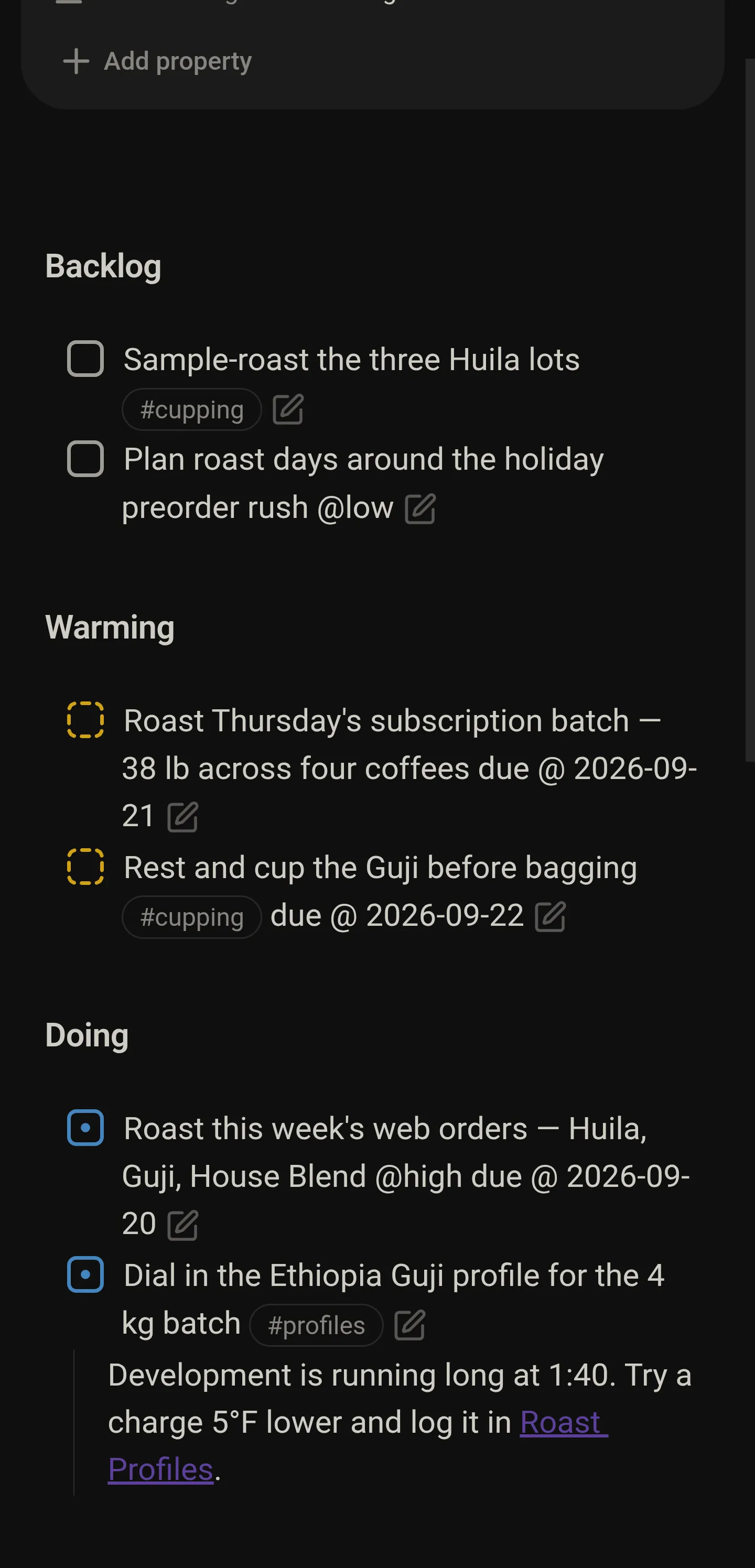
Section titled “On phones and tablets”On a phone or tablet the plugin starts in Lightweight mode: your notes keep MarkTodo’s checkboxes and the todo trigger, and archived projects are still filed, but the todo index, dashboard and boards stay off so Obsidian stays quick.
The first time it loads on a phone or tablet, the plugin offers the Android app in a pop-up, with a button to use the full plugin on this device instead. Closing it without choosing keeps Lightweight mode, and the pop-up does not come back on its own — in Lightweight mode it is what opening the dashboard shows.
Settings → On this device switches between Lightweight and the full plugin, for that device only. The choice takes effect when Obsidian restarts.
With the full plugin on, the dashboard, lists, boards and todo editor work on a phone too. Boards stay usable with a thumb: turn on Settings → Enable kanban drag on mobile to drag cards between columns, or leave it off and move a card from its tap menu.