Android app
The app opens the same notes on your phone. Pick your vault folder once (Install) and every screen below reads and writes those files.
Three panes
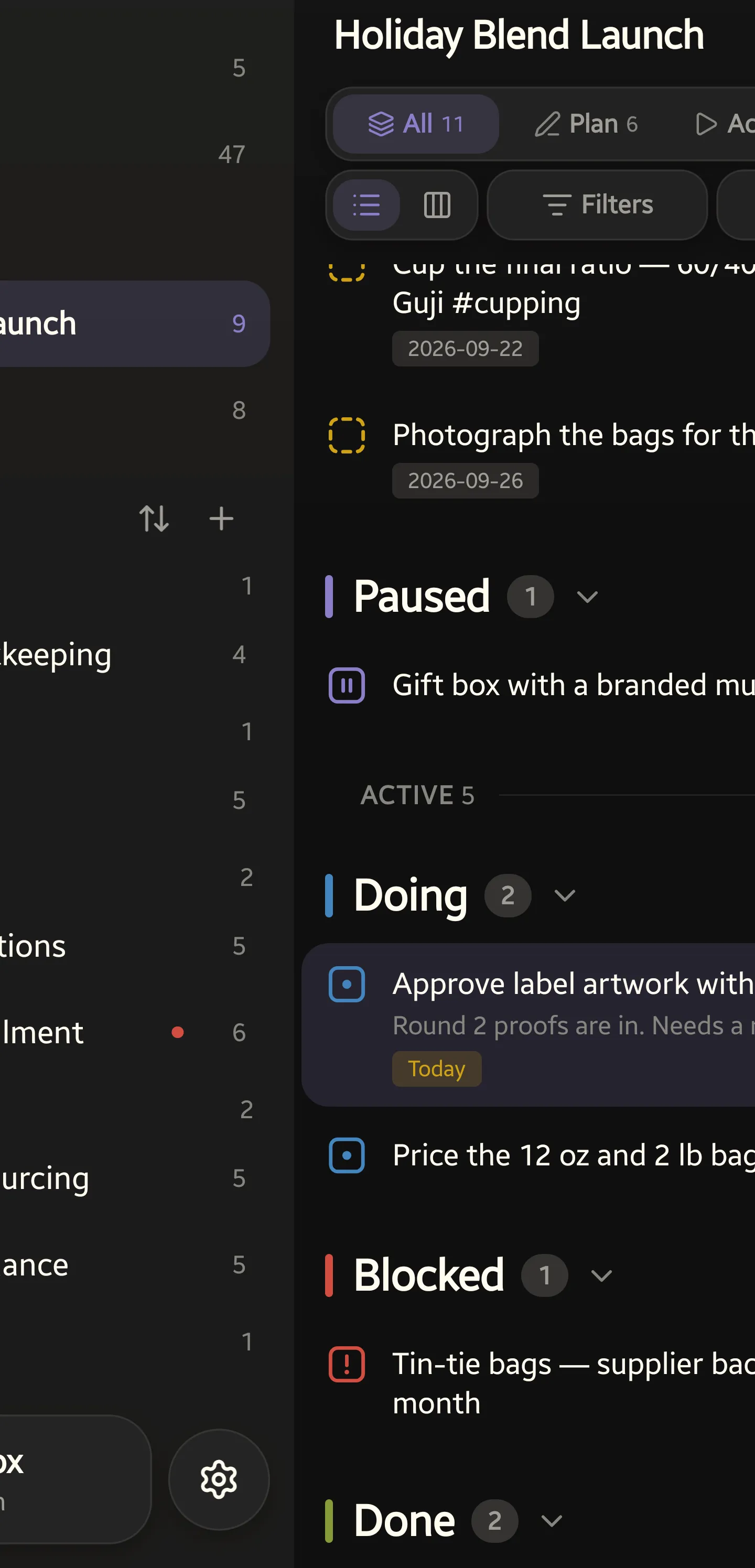
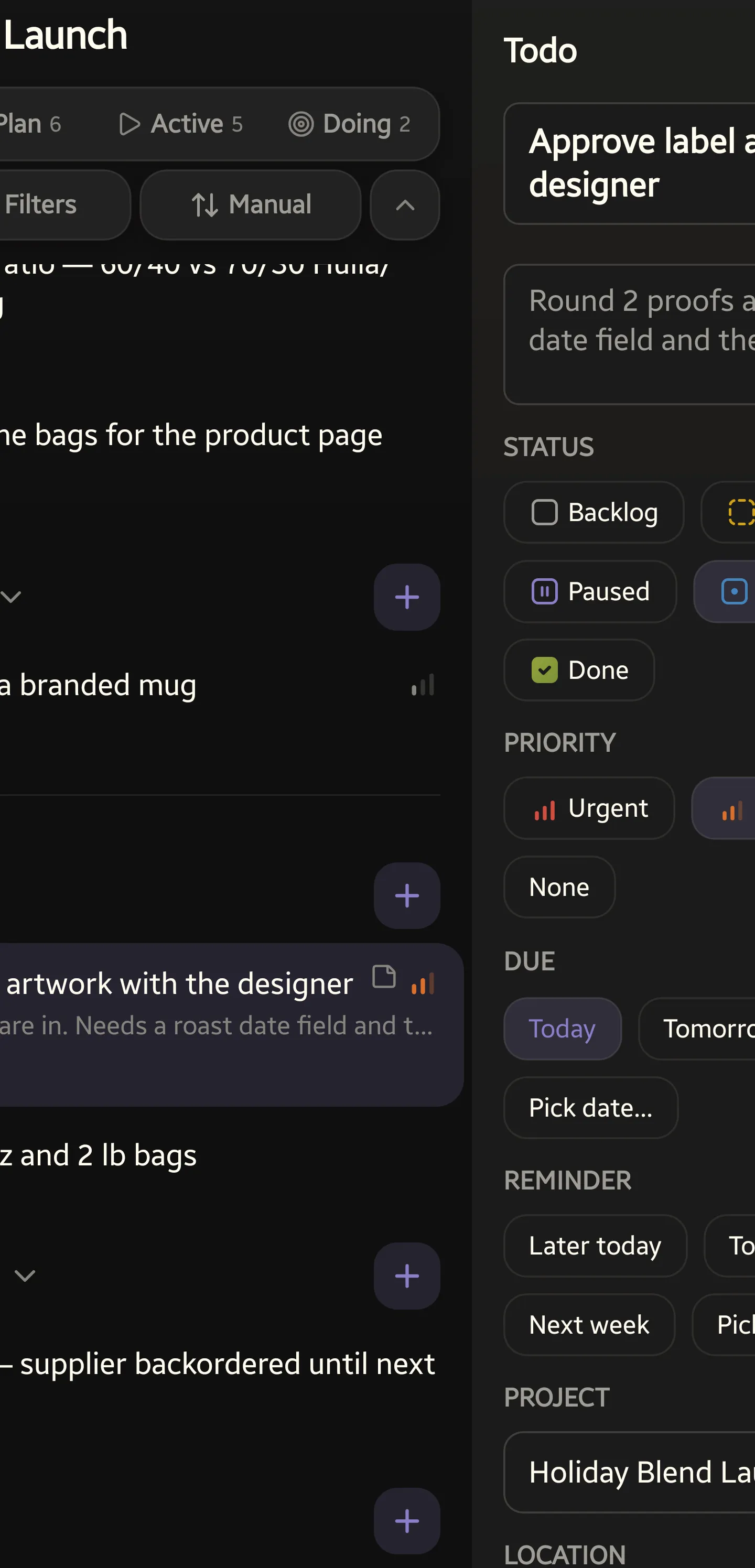
Section titled “Three panes”The app is three panes side by side: your projects on the left, the list you picked in the middle, and the todo you are working on to the right. Opening a side slides the list over instead of covering it, so a strip of the list stays in view and you always know where you are.
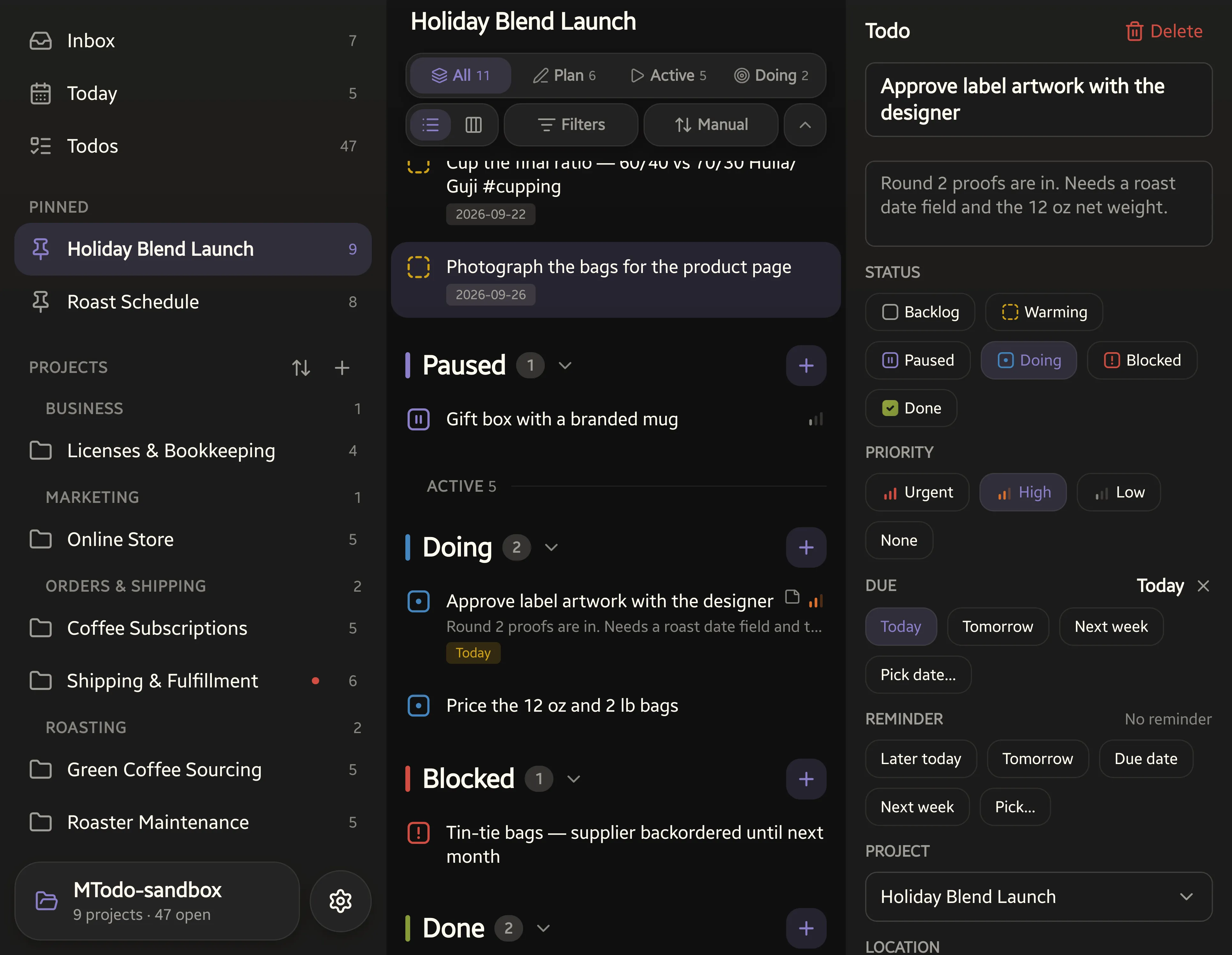
- Swipe right anywhere on a list to open your projects.
- Tap a todo and it opens in the pane on the right.
- Swipe left anywhere to bring back the last todo you opened. It stays highlighted in the list, and the toolbar’s Show last todo button opens it too.
- On a Kanban board the middle of the screen changes columns, so swipe from the outer quarter of the screen to reach either pane.
The view bar
Section titled “The view bar”Every list sits under the same bar the plugin uses, so a view set up in one program reads the same in the other — see the view bar in Obsidian.
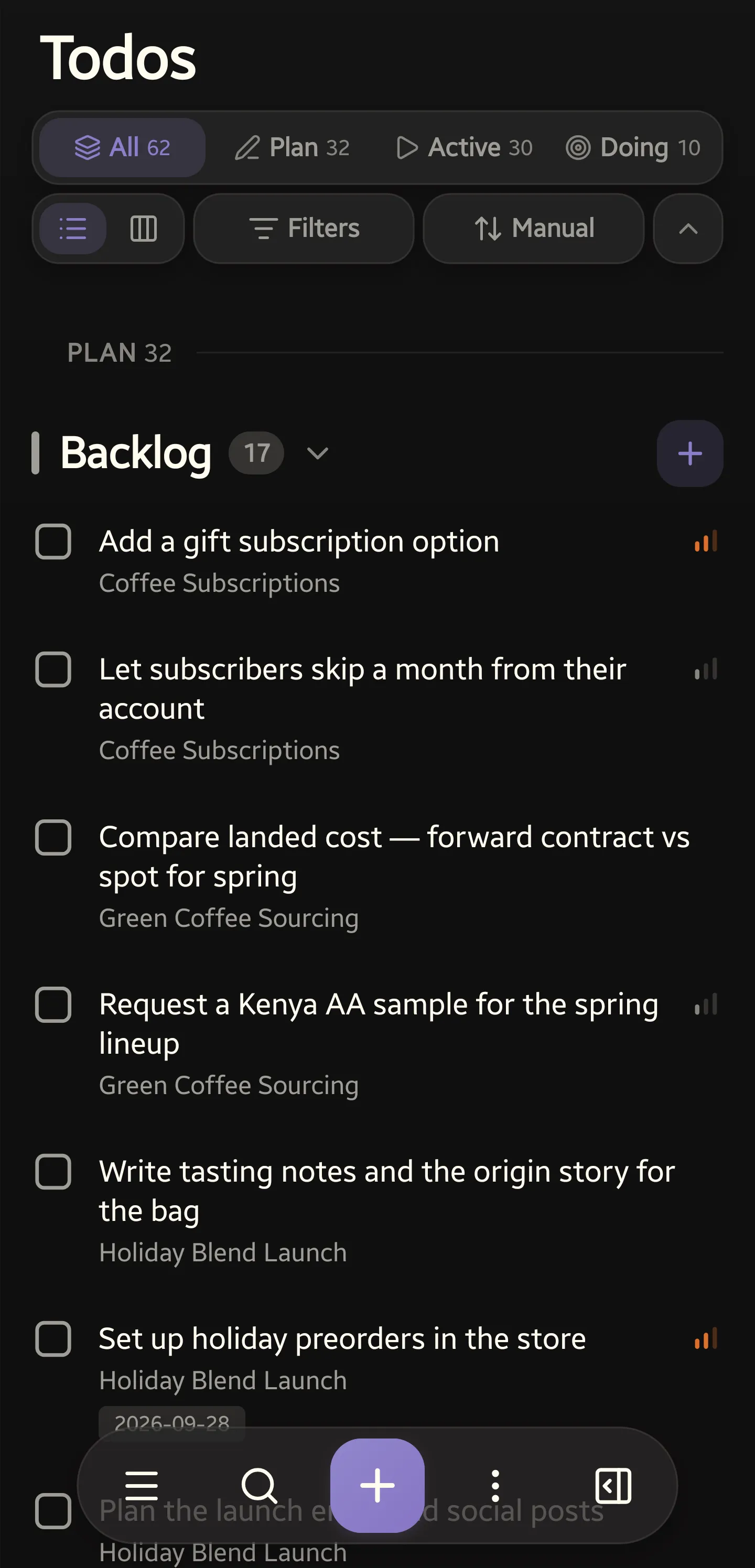
- Focus — All, Plan, Active and Doing, each with a count. It narrows what the list draws and nothing else; no todo is touched and no note is written. It is one stance you hold across the whole app, not a setting each view keeps its own copy of.
- List or board — the switch beside it, on Todos and on a project.
- Filters — project, tag, priority and tracking, with the number set on the pill.
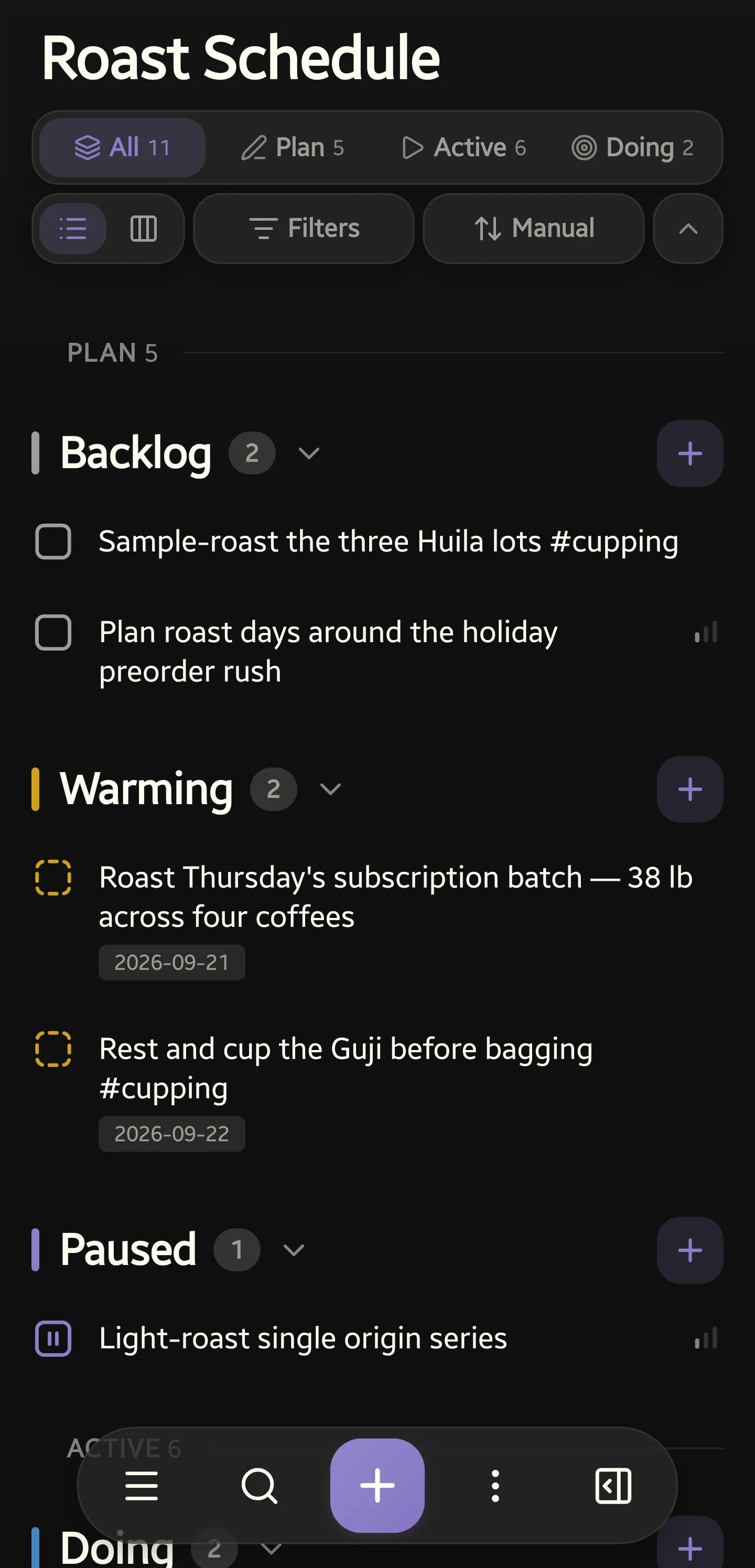
- Sort — the order within each status: Manual, Due, Priority, Title and, where more than one project is on screen, Project. Manual is file order, and the only sort that leaves dragging to reorder meaningful; pick another and dragging turns off. Done ignores the sort entirely and reads most-recently-completed first, in every list and on every board.
- Collapse the bar and it becomes one line that still says where you are:
List | All | 0 filters | Manual.
The focus row is on every list, and on every Agenda segment.
Agenda
Section titled “Agenda”Three segments across every project:
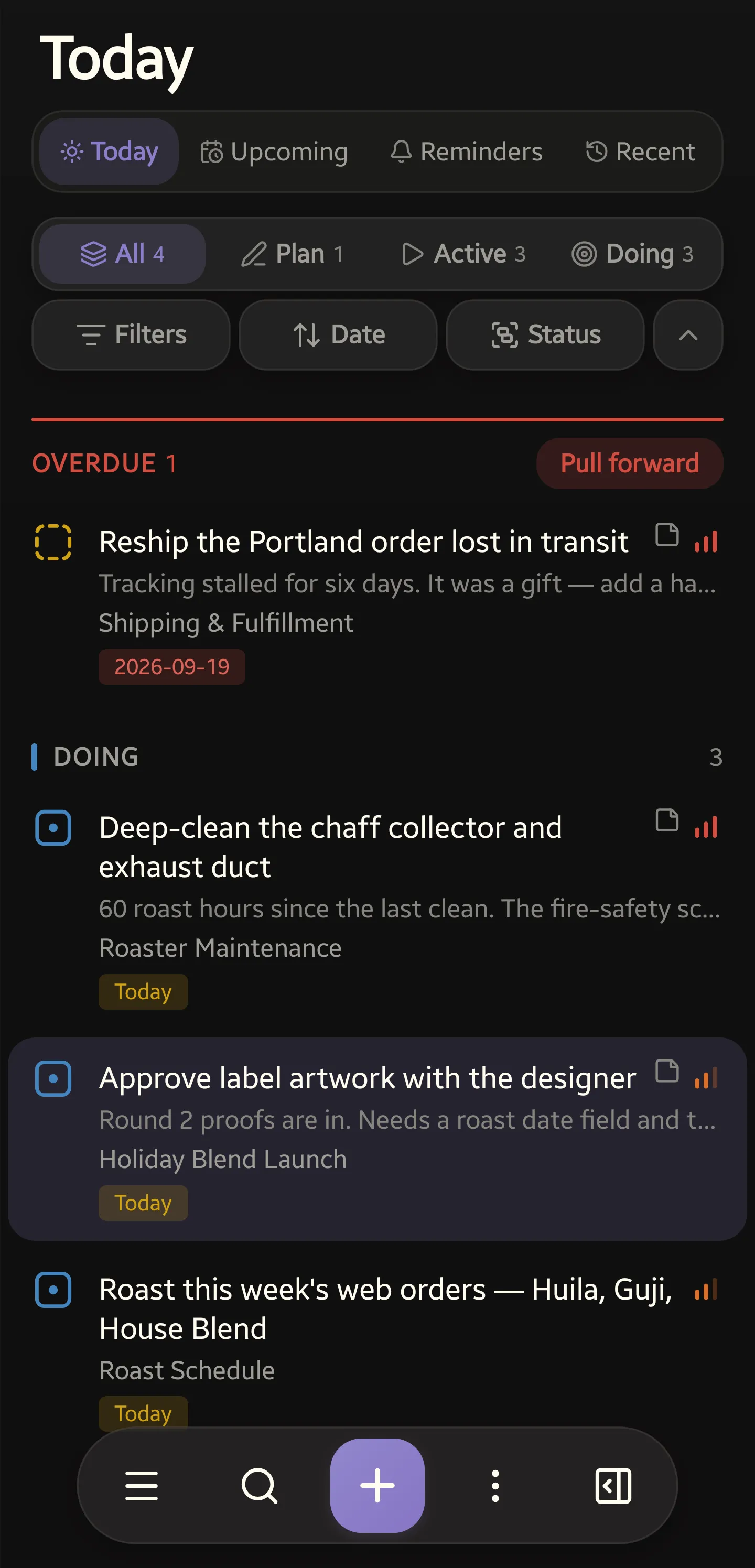
- Agenda — due today or earlier, with whatever is overdue leading.
- Upcoming — everything due through seven days out, with no lower bound, so what you have already missed is on the one screen you plan the week from.
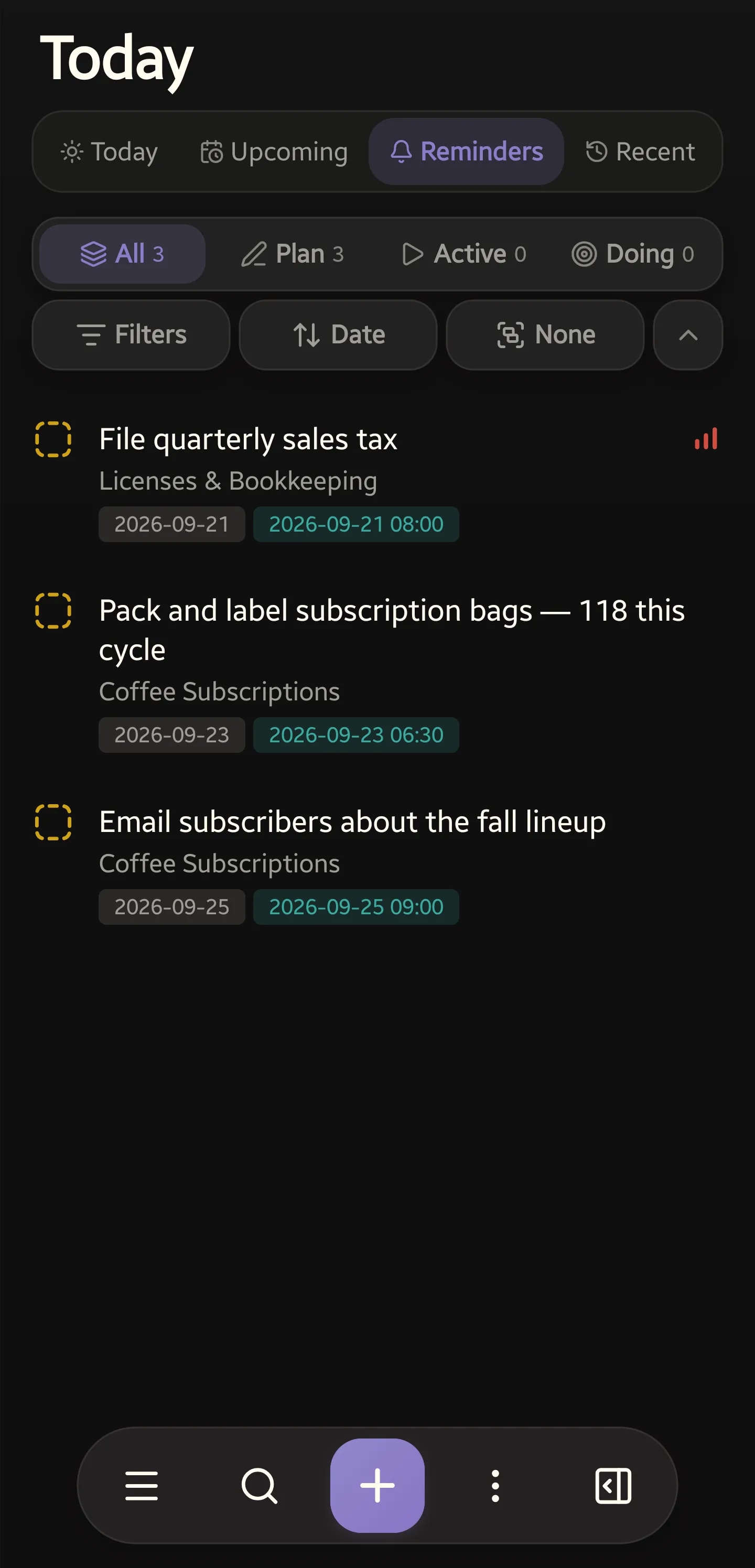
- Reminders — todos with a
notify @time, which the app turns into notifications.
Archived projects are left out of all three. Each segment keeps its own filters, sort and grouping, and Agenda can group by date, project, priority or status.
Agenda and Upcoming lead with an Overdue band, whatever the sort or the grouping is set to — it is not one more way the list is sliced, it is what the screen is for. Its Pull forward button re-dates those todos to today, and only the ones on screen: whatever your filters and focus have narrowed to, never every overdue todo in the vault.
Projects and boards
Section titled “Projects and boards”A project opens as a list grouped by status, under Plan and Active headings you can fold to put half the work away. Todos shows every project at once. A status section’s own + adds a todo straight into that status.
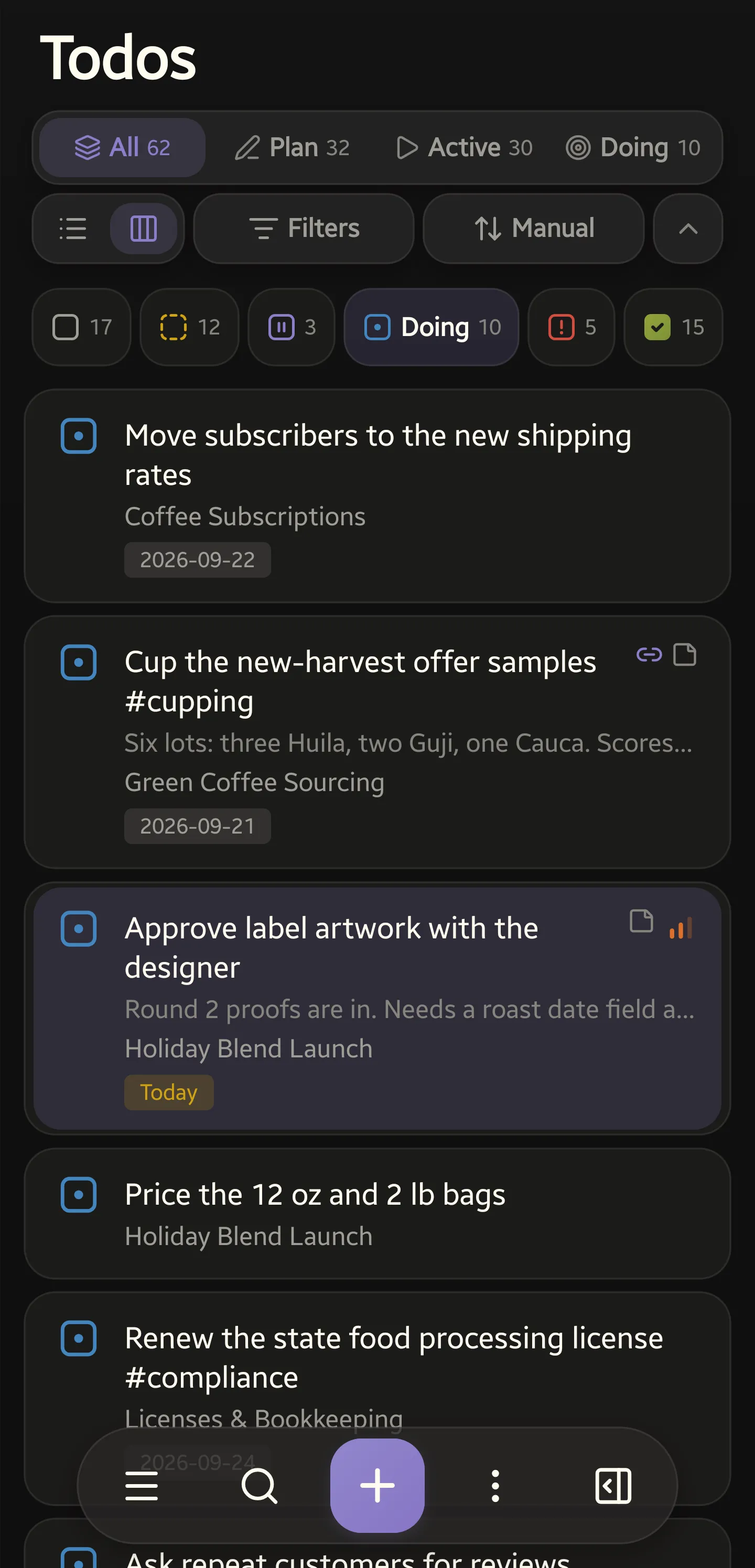
The view bar’s switch turns either list into a board: six status tabs, one column on screen at a time, every Plan status and then every Active one. A horizontal swipe walks to the neighbouring column, and the tabs narrow with the focus row, so a swipe can never land on a column that has no tab.
Long-press a card to drag it. Drop it on a status tab to change the status, back in the list to reorder it, or on the ✕ to cancel. A Done card cannot be reordered — its place is its completion time — but dropping a card into Done still works.
Every section and every column draws 20 rows, then offers Show 20 more. The
heading still counts the whole section, so Done 412 still says 412. What you
have opened stays open while you are on that screen and starts back at twenty
when you move to another one.
The drawer
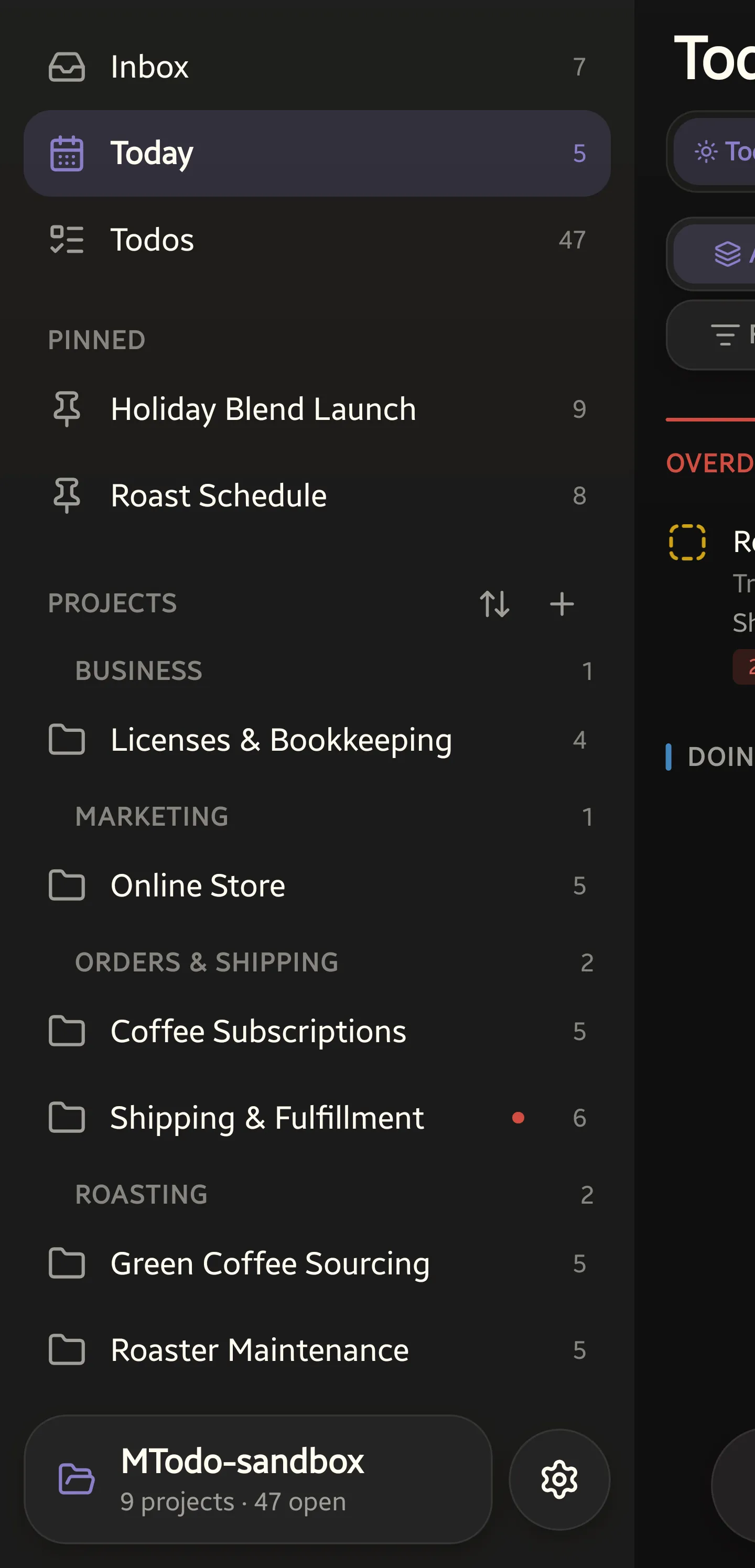
Section titled “The drawer”Swipe right, or use the toolbar’s ☰. Inbox, Agenda and Todos sit at the top with their counts, then your projects:
- Pinned comes first. Long-press a project to pin or unpin it. A pin is
marktodo-pinnedin the note’s own frontmatter, not a list on the phone, so it shows up in Obsidian too and survives renaming the note. - Projects below it, sectioned by group and foldable, with Archived last. A red dot means something in that project is overdue.
- + makes a new project — a note with every status heading, ready for todos.
- ⇅ sorts them by name, open todos or recently edited, and its sheet pins them too.
The card at the foot names the vault and opens Settings.
Editing and adding todos
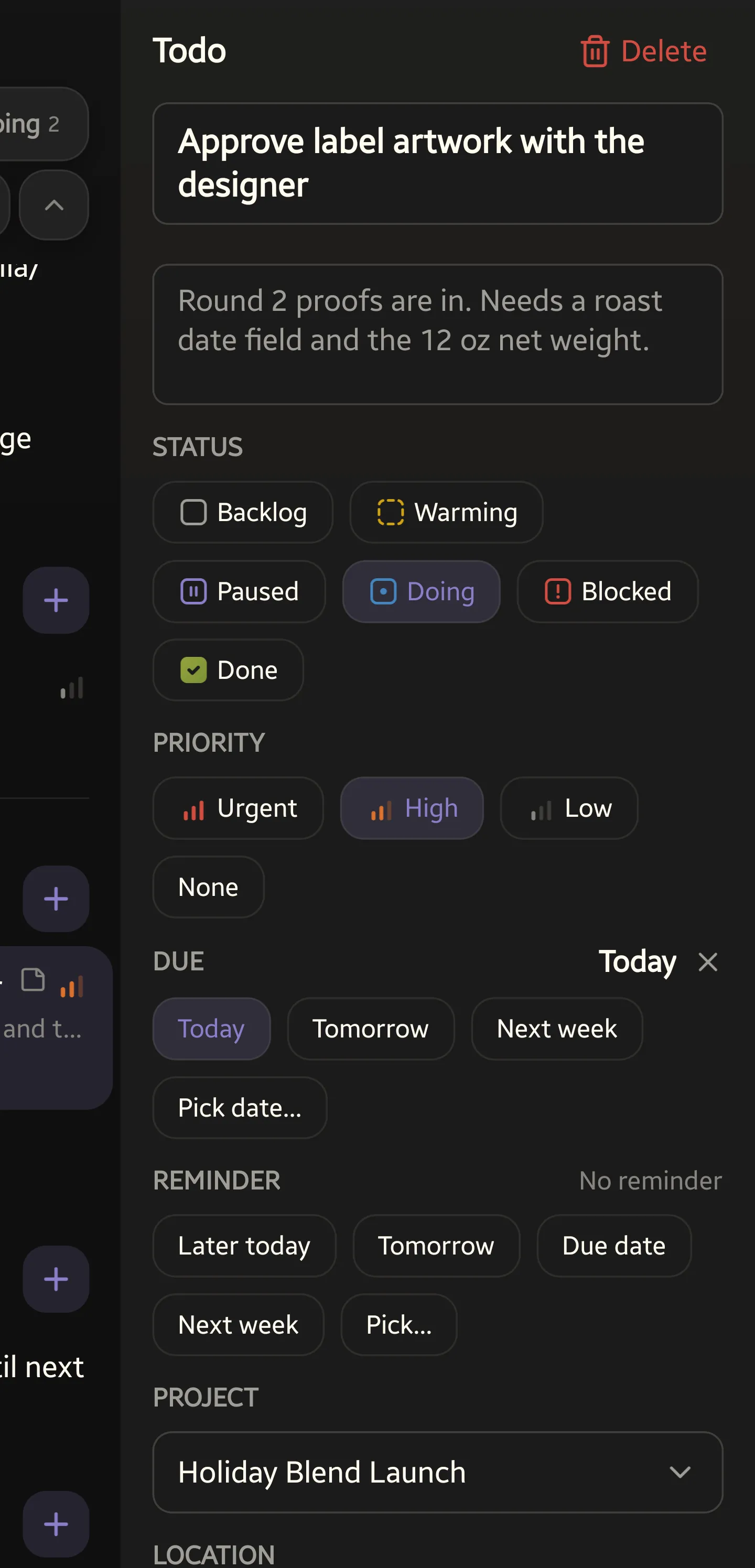
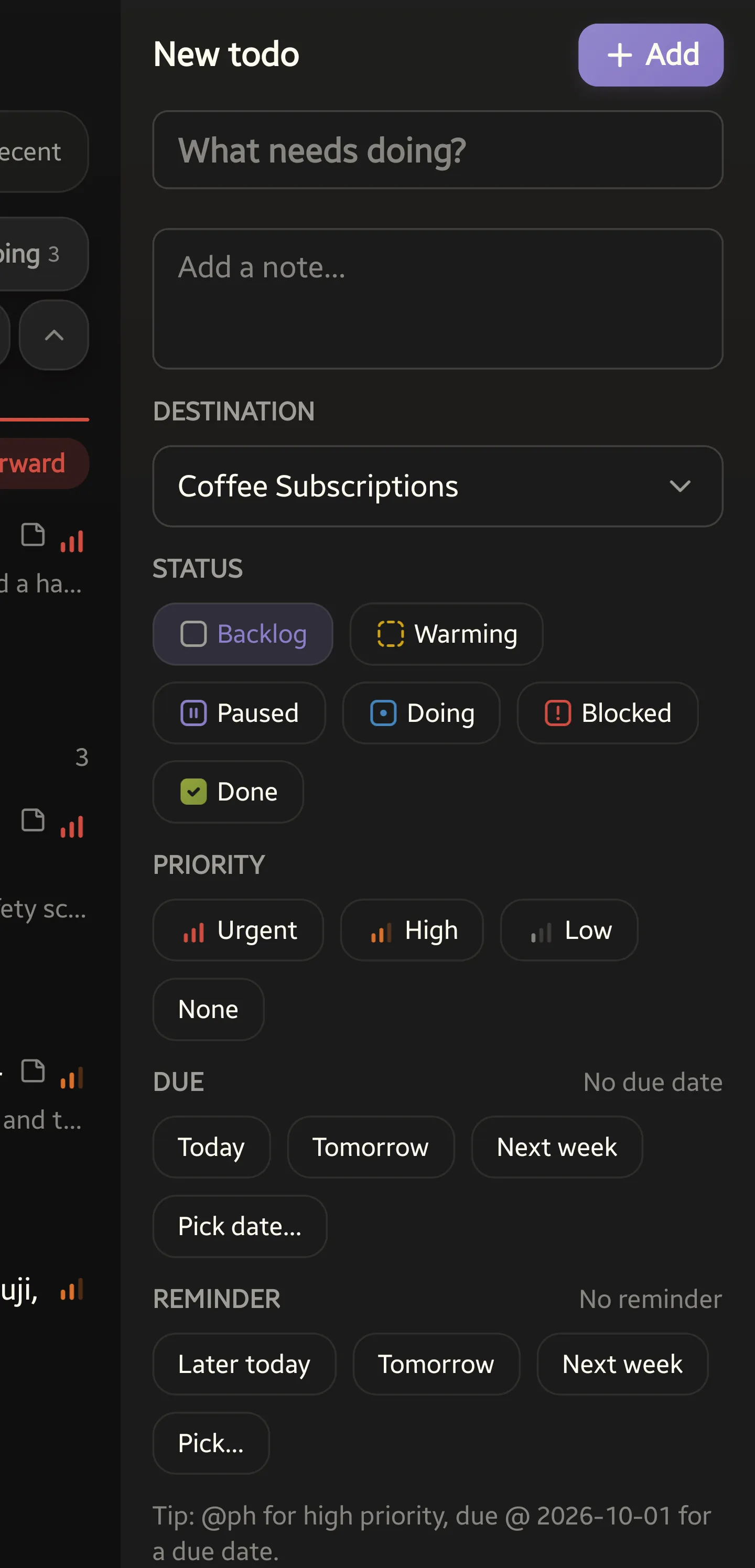
Section titled “Editing and adding todos”The todo pane sets the status, priority, due date, reminder and note, and can move the todo to another project. The + in the toolbar opens the same fields for a new todo, with the project to add it to.
Inbox and search
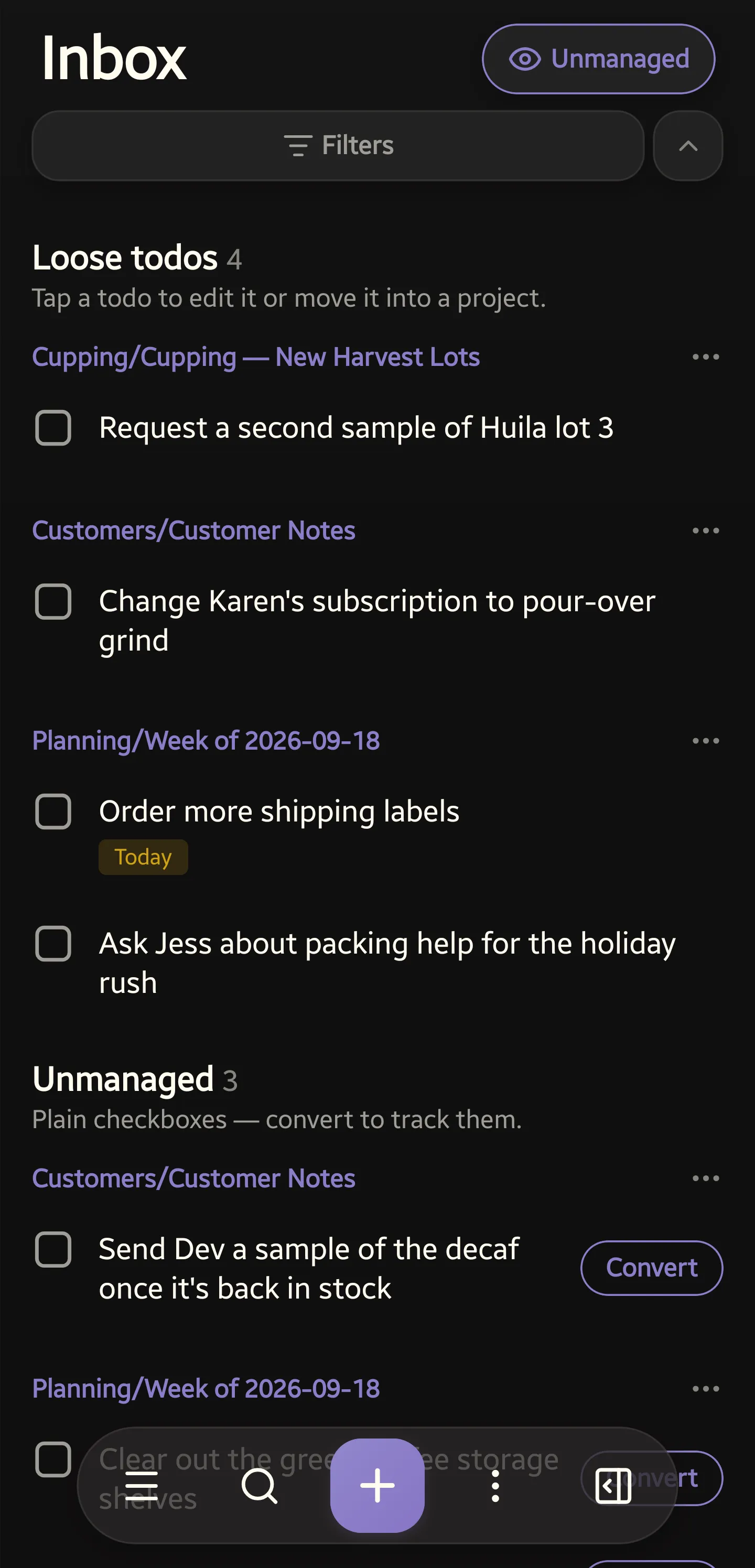
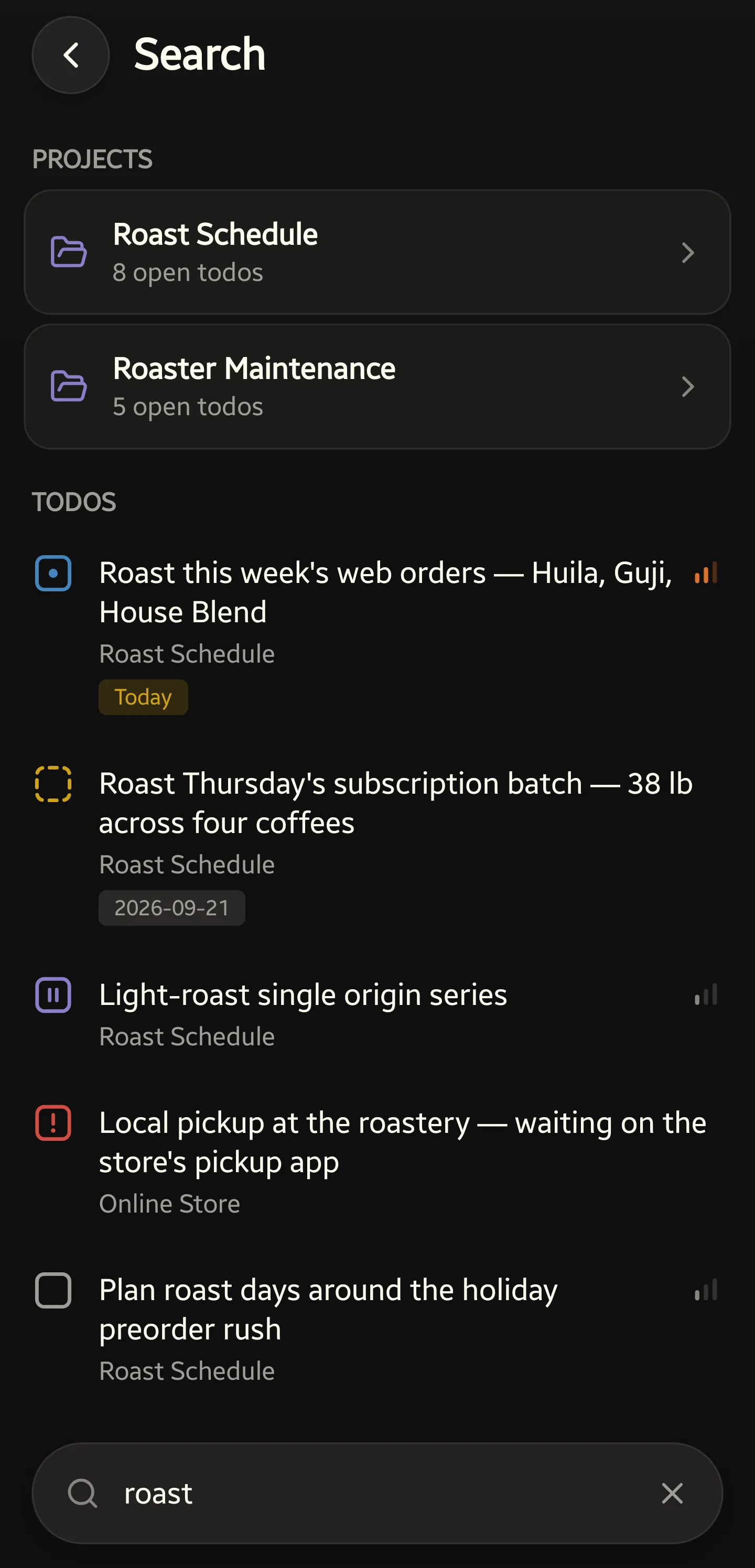
Section titled “Inbox and search”Todos in notes that are not projects wait in the Inbox, grouped by note. Turn on Unmanaged to list plain checkboxes too, each with a Convert button. Search finds todos anywhere in the vault.
Adding a todo without opening the app
Section titled “Adding a todo without opening the app”Three places outside the app itself:
- Long-press the launcher icon. New todo opens the new-todo fields straight away; Inbox and Todos open those screens.
- The home-screen widget’s +.
- A New todo tile in Quick Settings. Settings has a button that adds it.
Each home-screen widget picks its own view when you drop it — Today, Upcoming, Inbox, Todos, or one project — along with its theme and text size. Its header names the view and its count, and opens the app there; tapping a row opens that todo.
Reminders
Section titled “Reminders”notify @ 2026-07-01 09:30 on a todo becomes a notification at that time. For
it to arrive at the minute you set, Android needs to have granted the app
Alarms & reminders; without that permission the system treats the alarm as
inexact and may hold it back by up to an hour. Settings keeps a button for the
permission for as long as it is missing.
Sync and refresh
Section titled “Sync and refresh”The app reads and writes the vault folder on this device. Something else has to move those files between devices, and Settings → Sync is where you say which:
- Obsidian Sync — the files only change while Obsidian is open. So MarkTodo offers Sync in Obsidian after you make changes, and can remind you when you leave MarkTodo with changes still waiting, show a Return to MarkTodo button on a notification over Obsidian, and come back by itself after a number of seconds you set. That last one needs Android’s Display over other apps.
- Another sync app (Syncthing, FolderSync and the like) — your sync app moves the files by itself, and none of those prompts appear.
Refresh is set twice — once for pulling down on a list, once for the Refresh menu item — because the two are not quite the same question. Each chooses between:
- Open Obsidian, then reload — the only refresh that can see another device’s edits under Obsidian Sync, because opening Obsidian is when that sync runs.
- Re-read the vault folder — right when another app already moves the files.
- Nothing — for pull-to-refresh only; the menu item always refreshes.
Settings
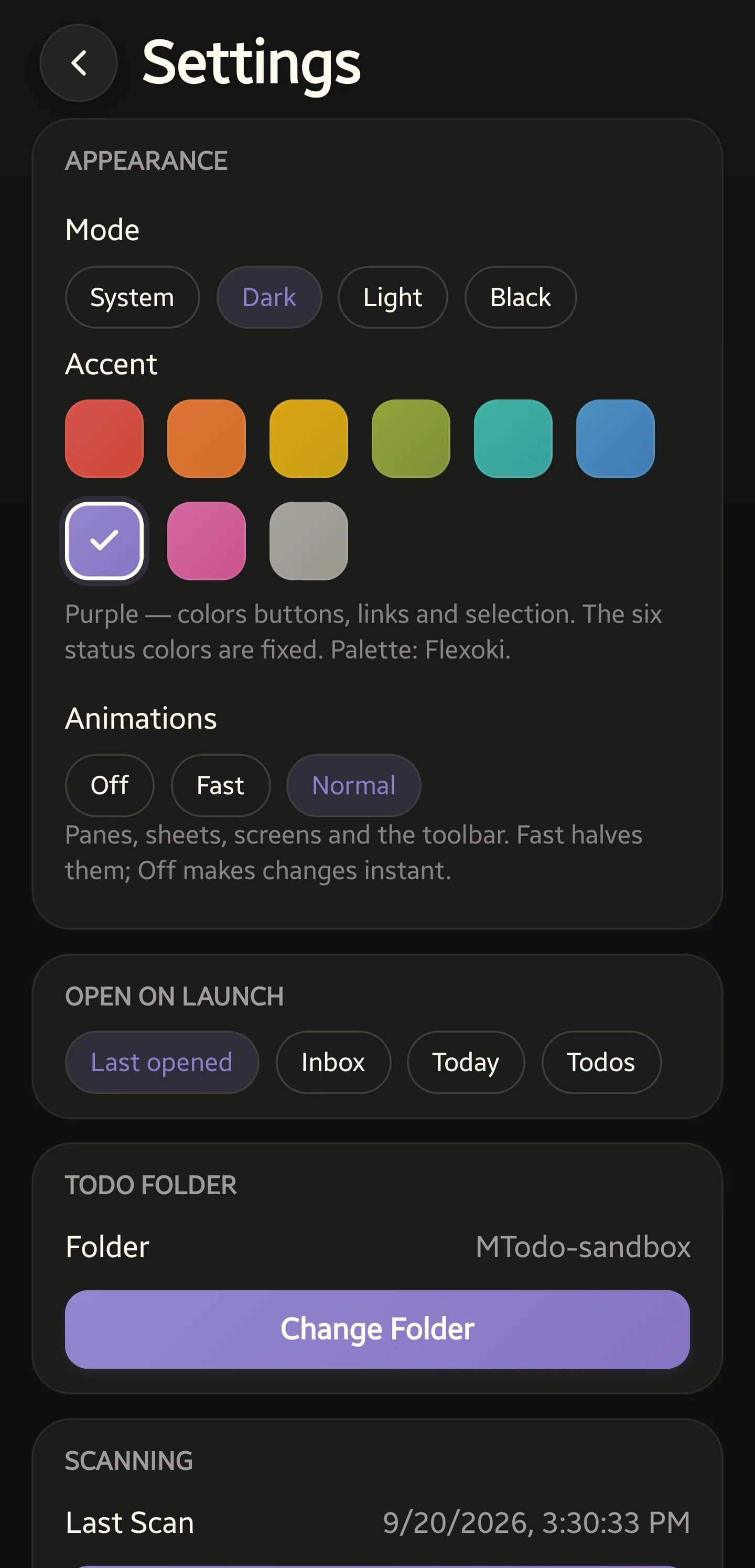
Section titled “Settings”Appearance. Mode is System, Dark, Light or Black. Accent is one Flexoki hue, which colours buttons, links and selection — the six status colours are fixed, so a status means the same colour in every vault. Animations are Off, Fast or Normal.
Open on launch. Last opened, Inbox, Agenda or Todos.
Todo folder. The vault folder you picked, with Change folder, and the last scan time with Rescan now beside it.
Completed todo cleanup. Per note, not a switch here: add
marktodo-cleanup: delete to a note’s frontmatter and completing a todo there
removes its line. Leave it out and nothing is ever removed, which includes every
note you have never touched. In the app the removal waits for the next sync, so
unchecking a todo before you sync cancels it — Obsidian, on this phone or any
other machine, removes the line as it marks the todo done. Archived notes never
delete.
Quick add. Where the + button’s destination starts: a project — the last one you added to — or today’s daily note. You can still change it each time.
Reminders, Inbox (list unmanaged checkboxes), Sync, Refresh and the quick-add surfaces are the sections above. Synced from Obsidian is below. A Tips and syntax guide, the vault’s folder URI and the contact links close out the screen.
Synced from Obsidian
Section titled “Synced from Obsidian”The app reads the MarkTodo plugin’s settings out of your vault and shows them read-only: which status new todos start as, whether status headings stay in sync, the catch-all note, excluded folders, where new projects go, the archive folder, and whether archiving moves the note. One vault, one answer — so they are changed in Obsidian, and the button there opens the plugin’s settings for you.
With the plugin turned off they stop updating. Uninstalling the plugin deletes the settings file, so a fresh install of the app would start from MarkTodo’s defaults.